Properties | Description |
|---|---|
Data Display | |
Type | Select the display type from the list to set options for the type. • Points - soundings shown as unconnected points. • Spheres - soundings shown as unconnected spheres. • Cylinders - soundings are shown as cylinders. If the soundings contain horizontal and vertical uncertainty values, then the cylinders are sized according to those values. • For example, soundings on the outer edge of a swath have a larger radius than soundings on the inner edge because of the greater horizontal uncertainty. • Soundings without TPU values are drawn to a set size. • Surface - shown as a smooth surface. • Surface Wireframe - soundings are shown as a Triangulated Irregular Network (TIN) that connects soundings. |
Overview | The data in both 2D and 3D view in Subset Editor can be centred a sounding. Click on the sounding using the middle-mouse button to shift the subset so that the sounding is centred in the View window. Click the Overview button to return the data to the original view and orientation. |
Outline | Display an outline of the subset bounding box in the 3D View. |
2D view slice | Display an outline of the 2D slice area. |
Auto Refresh | |
3D Dynamic Skip | This option determines how many sounding profiles and beams are displayed in the 3D View. For example, the value 6 means that only every 6th profile and 6th beam are displayed. 1. Select a skip value by clicking the arrow buttons, or directly typing a value in the 3D Dynamic Skip field. Applies to Point, Spheres and Cylinder types only. |
Shoal Bin Size | Soundings are drawn in the 3D View by selecting the shoalest sounding in a user-defined area (or bin). 1. Type the size of the bin area from which to select the shoalest sounding. 2. Click Regenerate to redraw the data display in the 3D View/, Applies to Surface and Surface Wireframe types only. |
Use All Points | Select Use All Points to display every sounding. Applies to Surface and Surface Wireframe types only. |
Allow rotation under data | Select the Allow Rotation Under Data option to rotate the subset display by 180º to view soundings underneath the subset. When this option is not selected, the subset can only be rotated by 90º. |
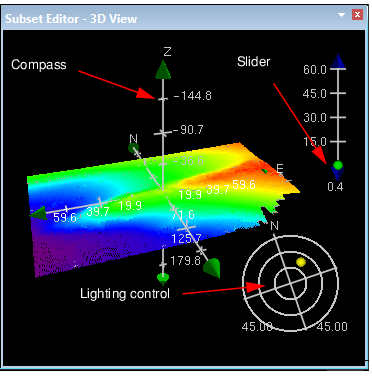
Compass, Lighting and Exaggeration | The compass (or control axes) rotates the view, the lighting control adjusts illumination, and the slider on the scale bar adjusts vertical exaggeration. 1. Select or clear the check boxes to display these features.
|
Shading | Select the Shading check box to darken the image in the 3-D View. |
Symbolize Critical Soundings | Select the Symbolize Critical Soundings check box to display soundings with Outstanding, Critical and Designated flags. |
Wireframe Colours | Click on the colour box to select a colour to display the 3D and 2D outlines in the 3D View. Click Custom Colour in the colour box to create another colour. |