CARIS HIPS and SIPS : Feature Editing : Commands : Digitize Geodetic Circle Using Two Point Diameter
 

Digitize Geodetic Circle Using Two Point Diameter


Pop-up

Line Digitizer > Geodetic Circle [2 diameter point]

Area Digitizer > Geodetic Circle [2 diameter point]

Use with the Create Line Feature or Create Area Feature command.

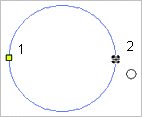
A geodetic circle defined by the length of its diameter.

Related commands:

Close Line

Digitize Point to Point Line

Digitize Fitted Curve

Digitize Geodesic Line

Digitize Loxodrome

Digitize Spline

Digitize Squared Line

Digitize Stream Line

Remove Last

Digitize Arc Using a Centre and Two Points

Digitize Arc Using Three Points

Digitize Arc Using Two Points and a Direction

Digitize Geodetic Arc

Digitize Rectangle Using Three Points

Digitize Rectangle Using Two Points

Digitize Circle Using a Centre and a Radius

Digitize Circle Using a Two Point Diameter

Digitize Circle Using Three Points

Digitize Circle Using Two Points and a Radius

Digitize Geodetic Circle Using a Centre and a Radius

Digitize Geodetic Circle Using Two Points and a Radius

Procedure

1. Select the Digitize Geodetic Circle Using Two Point Diameter command.

2. Click the first point on the diameter.

3. Press and hold the left mouse button.

4. Drag the cursor to expand the circle to an appropriate size.

5. Release the mouse button (2).

You can click directly on point 2 but pressing and dragging will give you a preview of the circle.

The geodetic circle is created.