Menu | File > Export > Variable Resolution BAG |
Export a variable resolution surface to a BAG raster with variable resolution refinement grids.
The dialog box will retain the option settings previously saved.
Related Commands:
• Import Variable Resolution from BAG
• New Variable Resolution Surface .
Interface
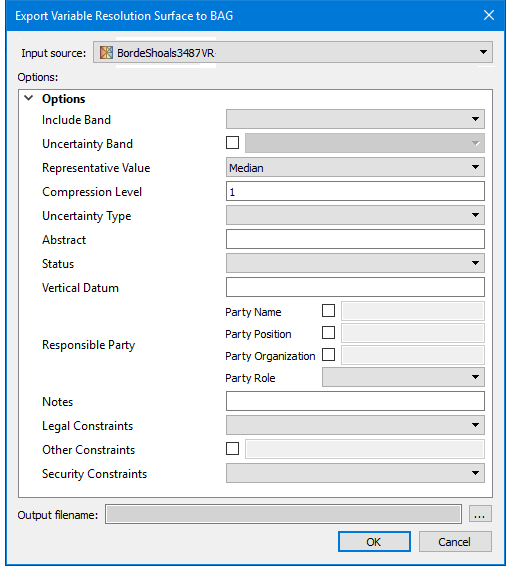
The Export Variable Resolution to BAG command uses the following dialog box:
Option | Description | |
|---|---|---|
Input Source | The Input Source list will display all open variable resolution surfaces. The selected surface is displayed by default. Another surface may be selected from the list. 1. Select the variable resolution surface to export to BAG format. A value must be set for this field. | |
Options: | ||
Include Band | The drop-down list for this field will display a list of any elevation bands or layers available in the selected input source, for example, Depth or Shoal. 1. Select a band from the list so it will be included in the output BAG. | |
Uncertainty Band | The drop-down list for this field will display a list of any numeric bands in the selected input source, such as Mean or Std Deviation. The list is activated by selecting the check box. If no band is selected from the list, no uncertainty values are exported. 1. Set the Uncertainty Band check box. This activates the list of bands in the input. 2. Select an uncertainty band source from the list. | |
Representative Value | The method by which a value will be selected for each tile. A tile value must be selected. • DEEP - The deepest node in the tile will be used. • MEDIAN - The median node in the tile will be used. • SHOAL - The shoalest node in the tile will be used. The default value is MEDIAN. 1. Select the type of value to use per tile. | |
Compression Level | Specify the level of compression applied to the output data. The default value is 1. The valid range is 0 to 9, 0 being “not compressed”, 9 “highly compressed”. 1. Enter a number specifying the level of compression. | |
Uncertainty Type | Select the type of uncertainty data stored in the input band to be included in the BAG metadata profile. 1. Select an Uncertainty Type from the following: • Raw standard deviation • CUBE standard deviation • Product uncertainty • Historical standard deviation • Average total propagated error • Unknown A value must be set for this field. | |
Abstract | Enter a description of the output BAG file as per ISO 19115. A value must be set for this field. | |
Status | Specify the status of the input data as per ISO 19115. 1. Select a status type from the list. • Complete • Historical archive • Obsolete • Ongoing • Planned • Required • Under development A value must be set for this field. | |
Vertical Datum | Specify the vertical datum of the input data. A value must be set for this field. 1. Enter the name of the vertical datum used in the input surface. | |
Responsible Party | Enter the identifying descriptive information for the Responsible Party (as per ISO 19115). 1. Select the check box for the following and enter the relevant information: • Party Name • Party Position • Party Organization. 2. Select the appropriate Party Role from the drop-down list. A value must be set for this field. | |
Notes | Enter appropriate notes (per ISO 19115) about the output. A value must be set for this field. | |
Legal Constraints | 1. Select the legal constraints of the output from the drop-down list. • Copyright • Patent • Patent pending • Trademark • License • Intellectual property rights • Restricted • Other restrictions A value must be set for this field. | |
Other Constraints | If the Legal Constraints option is set to “Other restrictions”, the check box must be enabled and an entry added to this field. Otherwise an entry is optional. 1. Select the check box to enable the field so you can enter other legal constraints information. 2. Type information on other constraints. | |
Security Constraints | 1. Select a security constraint from the drop-down list: • Unclassified • Restricted • Confidential • Secret • Top secret A value must be set for this field. | |
Output file name | The name and location of the exported BAG file. 1. Click the Browse button (...). 2. Navigate to the desired location and type a name for the output file. | |
Procedure
1. Select the parent layer of the surface to export.
2. Select the Export Variable Resolution Surface to BAG command.
3. In the dialog box, select the surface to be exported.
4. Set necessary options. Note: some fields must have values.
5. Click Browse and set an Output file name.
6. Click OK.
A new BAG surface is created from the variable resolution surface data.