Menu | Create (Add) > Layer By> Feature Object ID |
Tool |
|
Pop-up | Add Layer(s) > Feature Object ID (Layers window) |
Menu | Create (Add) > Layer By> Feature Object ID |
Tool |
|
Pop-up | Add Layer(s) > Feature Object ID (Layers window) |
Create layers based on feature object IDs. Because all features have unique IDs, you can use this filter to search for specific features in a map.
You can further filter the new layer using any of these related commands:
• Create Layer By Attribute Value
• Create Layer by Feature Acronym
• Create Layer by Feature Type
• Create Layer by Unique Feature Acronyms
• Select by Feature Object ID 255
Procedure
1. Select a layer.
2. Select the Create Layer by Feature Object ID command.
The Create by Feature Object ID dialog box is displayed.
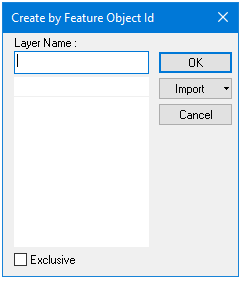
Option | Description |
Layer Name | A name for the layer. Type in the box. |
Select the feature object IDS | Select one or more feature object IDs using one of the following methods: • Type in the box • Click Import and select from the menu: • From Clipboard: The contents of the clipboard are copied to the list. For this to work correctly, the clipboard must contain one or more acronyms, each acronym must be on a separate row and the entries must be in all upper-case letters. • From Selection: The acronyms of all selected features are added to the list. • From Superselection: The acronym of the superselected feature is added to the list. |
Exclusive | Off: The filter will select only the features that meet the criteria. On: The filter will select all features except those that meet the criteria. |
3. Type or import feature object IDs.
4. [Optional] Enable Exclusive.
5. Click OK.
A layer containing the features that meet the criteria is created.
