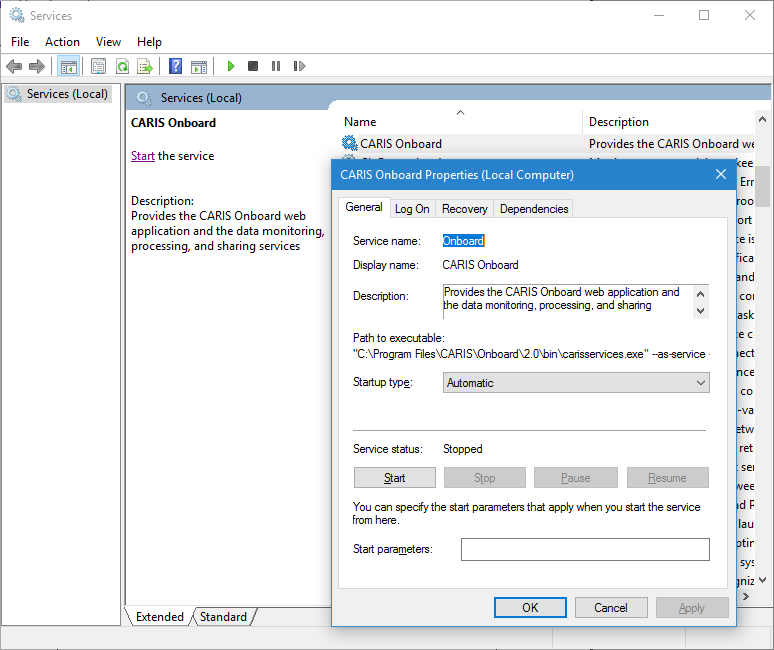
The steps below describe how to set matching user accounts that Onboard can use for all the data directories that Onboard needs to either read from or write to, and on the Windows Operating System on which Onboard is installed.
Matching user accounts should be set up:
• On each remote operating system on which there is data that Onboard needs to access,
• on each remote operating system on which Onboard will need to place processed files, and
• on the system on which Onboard is installed.
Directory permissions may need to be updated for the new user accounts.
You will need to determine if there is already an account on one or more of the operating systems that can be used for sharing data. If there is such an account, you will need to make matched copies of it on the other operating systems, including the one on which Onboard is installed.
Next, determine the account under which the Onboard service is running, and change it if necessary.
1. Navigate to Administrative Tools > Services
2. Right-click on the Onboard service.
3. Select Properties.
4. Select the Log On tab.
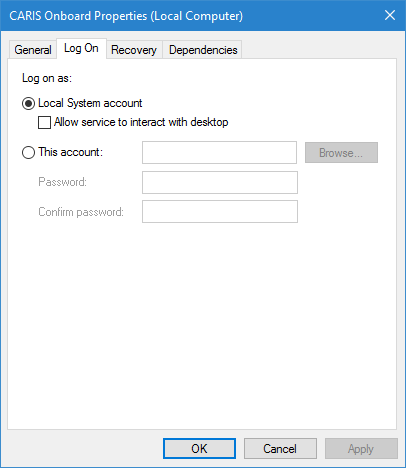
If the local System account is being used, it will need to be changed. If a different account is in use, it may be acceptable to create matched copies of this account on remote operating systems, and assign full control of the remote data directories to the matching accounts.
On the operating system on which Onboard is installed:
5. If there is no account suitable for setting up matched user accounts, create a user account, for example OnboardShare.
6. Enter the account credentials that you wish to use, for example, OnboardShare.
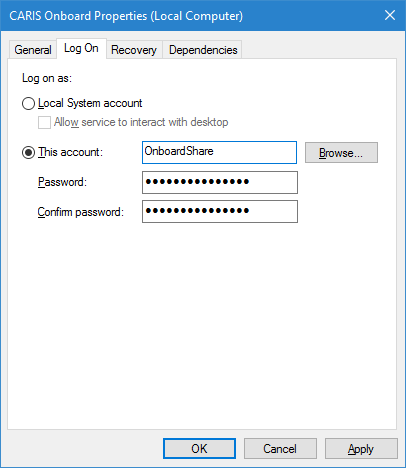
7. Restart the service.
Unless it already exists, you must now create a matching user account on any system that Onboard needs to access, and set the permissions of the directory to this account.
8. Unless it already exists on the remote operating system, create a user account identical to the account under which the Onboard service is running, for example, OnboardShare.
9. In the data directory that CARIS Onboard needs to access, set suitable permissions for this user account.
10. Reboot the operating system.
11. Repeat Steps 8, 9 and 10 for each directory that Onboard needs access to.
The technique described in Using Permissions can be used to help determine if the permissions are working.