To display details of a job, click on the job of interest in the Processing Status panel of the Onboard Control Centre. The Job Details dialog box is displayed, providing information relevant to the selected job.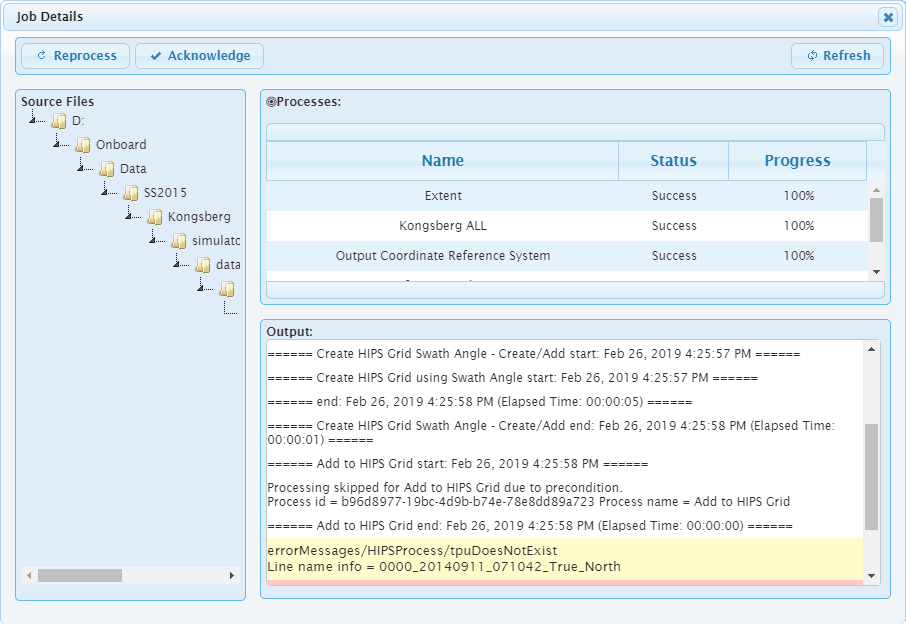
To display details of a job, click on the job of interest in the Processing Status panel of the Onboard Control Centre. The Job Details dialog box is displayed, providing information relevant to the selected job.
The controls provided in this dialog box will defer based on the status of the job selected.
Reprocess
The Reprocess button can be used to reprocess the file if needed. This control is available for all jobs. See Reprocessing Jobs for more information on reprocessing files.
Acknowledge
The Acknowledge button is used to indicate that a failed job has been assessed. Once the job has been accessed, its status will no longer affect the status of Processing Status panel, which will return to a check mark. This is useful because it allows the user to know if a new job fails processing. This control is only available for jobs with a status of Warning or Error. The status of the job will be appended with "(Ack.)" once it has been acknowledged.
Refresh
The Refresh button is used to update the information in the dialog box with the current state of the job being displayed. Changes to the status and progress of a job are not updated in the dialog box if it is launched while the job is still being processed. Refreshing the dialog box will display the most recent status of a job without having to reopen the dialog box.
Source Files
The Source Files section provides the name and location of the data file processed for the job.
Output
The Output section provides detailed messages for all of the processes run in a job. The messages for a process can be useful in determining problems during processing. Warning and error messages are coloured yellow and red, respectively, to make them more easily identifiable. For example, the image below displays a failed gridding process. By viewing the messages for that process, you can determine that the job failed because the TPU information required by the process model file was not present in the source data.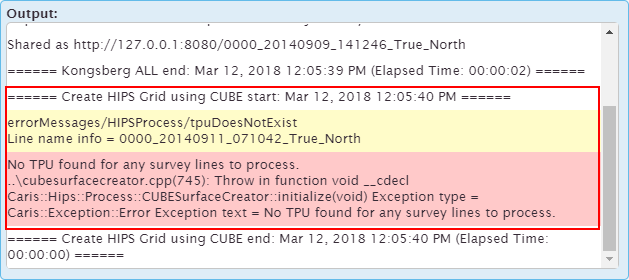
Processes
The Processes section provides:
• a list of all processes in the job, listed in the order that they are executed
• the status of each process at the time the dialog box was opened
• the current processing progress
The possible statuses for the processes in a job are:
Status | Behaviour |
Pending | The process is waiting to be run. |
Running | The process is currently running. |
Success | The process completed successfully. |
Warning | The job completed successfully, but warnings were issued. For example, if multiple lines were processed in a single job, but not all lines processed successfully, the job would still complete but the messages for the processes will identify lines that failed. |
Errors | Errors were encountered and the job did not complete successfully. For example, a gridding process may fail if the input data is not within the extents specified in the process model file. |
Skipped | The process did not run. This may happen if a process is dependent on the output from a previous process and that previous process failed, meaning the input necessary for the current process is unavailable. |
The statuses of the processes in a job are used to determine the status of the job itself. If any of the processes fail, the job may also fail. The messages reported for each process can provide more details about the status and success of a process.