Menu | File > Export > Selection > GML |
Menu | File > Export > Selection > KML |
Menu | File > Export > Selection > Formatted ASCII |
Export a selection of features to one of the following file types:
• GML: (.gml) Geographic Markup Language. A schema file (.xsd) is also created. It defines the type of elements that can be used and the relationships between different elements.
• KML: (.kml) Keyhole Markup Language
• Formatted ASCII: (.ascii)
A mapping file can be applied to convert features from one data format to another.
Related commands:
Procedure
1. Select one or more features.
2. Select the appropriate Export Selection to command.
The Save As dialog box is displayed.
3. Select a folder and type a file name.
4. Click Save.
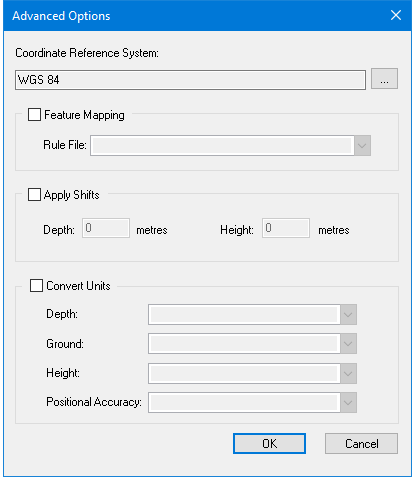
The Advanced Options dialog box is displayed.
Option | Description |
Coordinate Reference System | The reference system for the output file. Select from the list. |
Feature Mapping | On: Apply a mapping file to convert from one format to another. Select the mapping file from the Rule File list. Off: No mapping file is applied. |
Apply Shifts | On: Apply depth or height shifts to attributes with sounding or vertical datum types. Type the shift value in metres. • Depth: Type a plus sign (+) in front of the value to make it deeper or a minus (-) sign to make it shallower. • Height: Type a plus sign (+) in front of the value to make it higher or a minus (-) sign to make it shorter. Off: No shifts are applied. |
Convert Units | On: Convert from one unit of measurement to another. Select the units for the output file as appropriate from the following options: • Depth • Ground • Height • Positional Accuracy Off: Do not convert measurement units. |
You can enable any or all of these options or none at all.
5. Set any necessary options.
6. Click OK.
The features are exported.