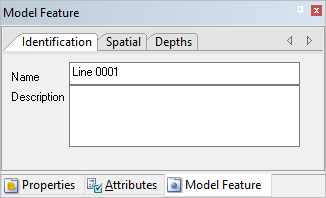
The various tabs of the Model Feature window can be used to modify a line feature.
Related commands:
• New Line from Existing Points
• New Line from Superselection/Selection
Procedure: Identification Tab
In the Identification tab you can change the name or description of a line.
1. In the Model window, select the line you want to modify or superselect it in the Display window.
2. Select the Identification tab in the Model Feature window.
3. Type a new name in the Name field or enter a textual description in the Description field.
4. Press Enter to apply your changes.
5. Save the changes to the reference model.
Procedure: Spatial Tab
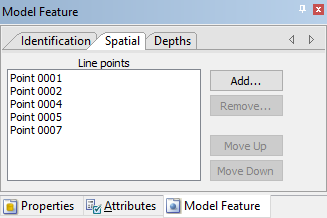
In the Spatial tab you can add or remove the points that make up a line, or change the order of the points in the line.
1. In the Model window, select the line you want to modify or superselect it in the Display window.
2. Select the Spatial tab in the Model Feature window.
3. Do one of the following:
• Click Add to launch the Add to Line dialog box and select a point to add to the line.
• Select a point, and click Move Up or Move Down to change the location of the point in the list, which changes the order of the points in the line.
• Select a point, and click Remove to remove that point from the line.
4. Save the changes to the reference model.
Procedure: Depths Tab
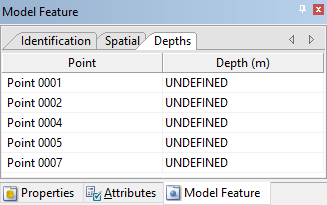
In the Depths tab you can add depth values to the points in a line. A line is not complete until every point of the line has a depth value. The name of the tab itself and the name of the column in the tab containing elevation values can change based on the Z-axis convention setting of the application. “Depth” is used when the convention is positive down; “Height” is used when the convention is positive up.
1. In the Model window, select the line you want to modify or superselect it in the Display window.
2. Select the Depths tab in the Model Feature window.
3. Select a point in the list and enter a value in the Depth column.
4. Press Enter to apply your changes.
5. Repeat steps 3 and 4 for each point.
6. Save the changes to the reference model.
The Make Features Horizontal command can be used to assign the same depth value to all points in a feature in a single process. See Make Features Horizontal for more information. |