Menu | Model > New Feature > Surface > From Existing Points |
Tool |
|
Pop-up | Create New Surface (Model window) |
Menu | Model > New Feature > Surface > From Existing Points |
Tool |
|
Pop-up | Create New Surface (Model window) |
Create a reference model surface using existing points. To create a surface, the reference model must have at least three existing points available. You can select the points that will be used to create the surface prior to initiating the surface creation command, or they can be selected during creation. For more information about surfaces, see Surfaces.
Related commands:
• New Surface from Superselection/Selection
Interface
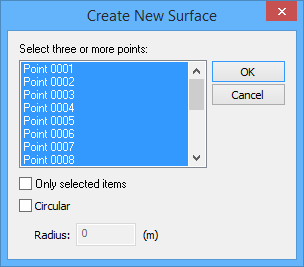
The New Surface from Existing Points command uses the following dialog box.
Option | Description |
Select three or more points | The reference model points from which to create the new surface. 1. Press and hold the <Ctrl> key, then click the relevant points in the list. |
Only selected items | Enable this option to limit the list of available points to only the reference model points that were selected when the command was launched. |
Circular | Create a circular reference model surface. Circular surfaces are defined by a centre point and a radius value. All circular surfaces are horizontal (at a single elevation). |
Radius | The distance from the centre point of a circular surface. This field is only enabled if the Circular field is populated. |
Procedure
1. [Optional] Select points in the display.
2. Select the (New Feature, Surface) From Existing Points command.
The Create New Surface dialog box is displayed.
3. Select the points to use to create the surface.
4. If creating a circular surface, enable the Circular option and enter a Radius value.
5. Click OK.
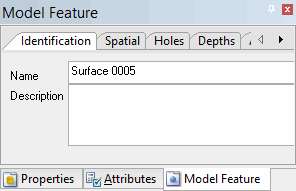
The name of the new surface is displayed in the Identification tab of the Model Feature window.
The points that make up the new surface are displayed in the Spatial tab. You can use the tabs in the Model Feature window to change the settings for a surface at any time.
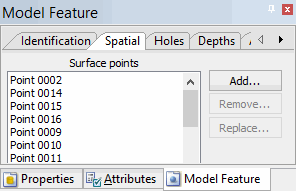
If you selected points to create a convex shape, these points are displayed with an asterisk (*) in front of them. This means you must sort these points manually. |
