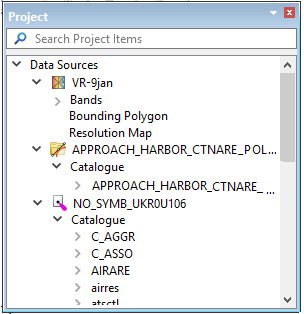
The Project window is used to organize and manage a data sources open in the application.
While each data format has its own definitions as to what information is to be displayed for a given source, the Project window can typically be thought of as the catalogue of the source.
When all related data sources have been opened in the Project window, they can be saved as a project, and reopened as one unit by using the Open Project command. See Open Project. An untitled project file is generated automatically when a data source is opened if no project is open in the application.
Process interactions with data are done by selecting sources in the Project window. Multiple sources can be selected.
Data sources are listed in the Project window, with their features, bands or attribute items displayed below each data source name. For example, Catalogue items can be expanded to see object names. A CARIS file could list each feature type (polygons, lines, names, soundings, and symbols). CSAR files have bands such as intensity, depth, weight values etc.
Interaction with Layers Window
Typically, when a source is opened in the application, a display layer is added to the Layers window, often with the same name as the source. Some exceptions may be displayed depending on the format of the data. See Layers Window.
The Project window lists sources, with bands, bounding polygon, designated soundings, feature attributes and resolution maps in an expandable list below each data source.
Depending on their data type, many of these source items can be added as additional layers to the Layers window using the Add Layer command on the right-click menu.
In the case of CSAR data, the new layer will be created automatically from the Add Layer command, based on the item selected in the Project window. For data types which require filtering, the Add Layer command will launch the Select Feature Types and/or Filter dialog box.
Properties for each item in the Project window can be seen in the Properties window when the item is selected. Most of these properties are read-only.
Related Commands: