Menu | Model > New Model |
Tool |
|
Menu | Model > New Model |
Tool |
|
The New Model command is used to create a new reference model in a new file (XML format).
A reference model is comprised of reference model features (some of which are described in Reference Model Features,) and metadata. This metadata includes:
• Name: a unique name that identifies the reference model;
• Coordinate system: the coordinate system used to store the reference model feature positions (X, Y);
• Units: the vertical and horizontal units of measure selected for the X, Y, and Z values of the features; and,
• Resolution: the resolution used to store the X, Y, and Z values of the features.
New features in a reference model have a default name (prefix) and a sequential number so that each feature has a unique identifier.
These names can be edited later, using the Model Feature window, if necessary. |
Related commands:
Interface
The New Model command uses the following dialog box.
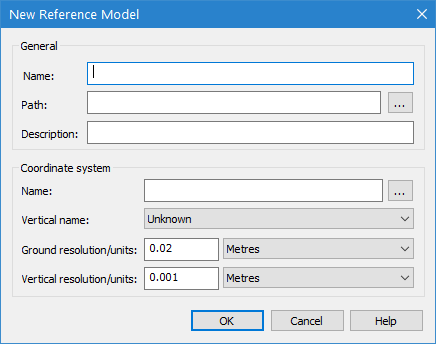
Option | Description |
Name | The name to assign to the new reference model. Reference model names can contain alphanumeric characters, spaces, extended characters and most symbol characters. If a "Could not create the reference model." error message is displayed when you attempt to create the model, close the message and try replacing any symbol characters with letter, number, or space characters. |
Path | The location for the new reference model file. 1. Click the Path browse button (...) and select the a location. |
Description | An optional textual description of the reference model. |
Cooridinate System Name | The horizontal coordinate reference system (CRS) for the reference model. 1. Click the browse button (...) to launch the Select Coordinate Reference System dialog box and select a CRS. See Change Coordinate Reference System for more information on this dialog box. Reference models do not support Geographic (Lat/Long) coordinate systems because they do not guarantee precise calculations. |
Vertical name | The vertical CRS for the reference model. The options in the list are controlled by the entries in the spatialref.db file, which can be edited using the Vertical Reference System Editor. See Vertical Reference System Editor for more information. |
Ground resolution/units | The value and units of measure to use for ground resolution values. This field will default to the smallest possible value when the dialog box is displayed. The smallest possible value for ground resolution is 0.02m. |
Vertical resolution/units | The value and units of measure to use for vertical resolution values. This field will default to the smallest possible value when the dialog box is displayed. The smallest possible value for vertical resolution is 0.001m. |
Procedure
1. Select the New Model command.
The New Reference Model dialog box is displayed.
2. Enter a Name for the reference model.
3. Select a location for the new file.
4. Select a horizontal CRS.
5. Select a Vertical CRS.
6. Enter a value for the Ground resolution and select a unit of measure.
7. Enter a value for the Vertical resolution and select a unit of measure.
You can import reference models with resolution values higher than the defaults, however, imported points that are separated by a distance greater than the resolution will be "skipped". Any features relying on skipped points will be incomplete, and must be corrected manually. |
8. Click OK.
If the reference model name you specified already exists in the selected location, a message will be displayed when you click Finish.
• Click Yes to overwrite the existing reference model, or
• Click No to change the name or location of the new reference model. You will be returned to the New Reference Model dialog box to enter a new name/path.
The new model is created and opened. If no other reference model is open, it will be set as the active model. See Set as Active Model for more information on defining the active model. The metadata of the reference model is defined and the view extents are setup to begin the creation of the model features.
