
The components of the Subset Editor interface include the Subset Editor - 3D View window, the Subset Editor - 2D View window and the Subset Editor toolbar. These components are each described below.
The Subset Editor components all have default locations in the interface, but can be added, removed, resized and repositioned as needed.
The Subset View windows can be added or removed using:
• the Windows > Other Windows > Subset Editor - 2D View or Subset Editor - 3D View menu commands,
• the 2D and 3D buttons on the Subset Editor toolbar, or
• the Subset Editor - 2D View or Subset Editor - 3D View commands in the Status bar pop-up menu.
The views and toolbar can be moved and resized within the interface in the same manner as other windows and toolbars in the application.
The Measure Distance and Angle tool can be used in both subset views. The tool and output function in the same manner as in the 3D View, except that the measurement will be visible in both the 2D and 3D Subset Views simultaneously when measuring in Subset Editor. See Measure Distance and Angle for more information on using this tool.
Subset Editor - 3D View
The Subset Editor - 3D View window displays the data within the subset area in a three-dimensional view and can be used to examine and clean data. This window is opened automatically when the Subset Editor is started.
This window functions in the same manner as the standard 3D view and provides the same viewing and navigation controls. See Adjust the Display and Navigate the 3D View for information on navigating in 3D.
Subset Editor - 2D View
The Subset Editor - 2D View window displays a profile of soundings that are within the 2D subset slice box. This window is opened automatically when the Subset Editor is started. This view can also be used to examine and clean data.
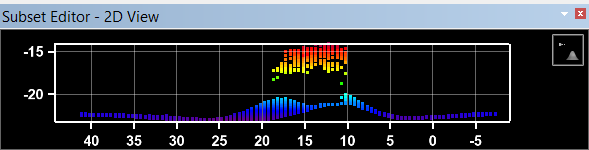
The display of data in this window is determined by the size of the slice box within the user-defined subset. As the slice box is re-sized or moved to another position in the subset, the display in the Subset Editor - 2D view changes accordingly. The display can be adjusted using the following controls:
• the Vertical Exaggeration tool in the window
• mouse and keyboard controls
• the properties of the Subset Editor layer
The Vertical Exaggeration tool functions in the same manner as the control in the 3D View. See Adjust the Display for more information.
The following mouse and keyboard controls are available:
Control | Display Change | |
Keyboard Shortcuts | Shift + | Pan up in a straight line (vertical to grid). |
Shift + | Pan down in a straight line (vertical to grid). | |
| Pan left in a straight line (horizontal to grid). | |
| Pan right in a straight line (horizontal to grid). | |
C | Zoom into the display in the Subset 2D View. | |
V | Zoom out of the display in the Subset 2D View. | |
| With the Display window active, move the 2D slice up in the subset area. | |
| With the Display window active, move the 2D slice down in the subset area. | |
Ctrl + | Zoom into the view in the Display window. | |
Ctrl + | Zoom out of the view in the Display window. | |
Mouse Controls | Left | Select points at the current cursor location. Press and hold while dragging the cursor to create a bounding box and select a group of points. |
Middle | Pan the display relative to the direction of the mouse cursor. Press and hold while dragging the cursor in the desired direction. | |
Middle | Scroll forward to zoom into the display. | |
Middle | Scroll reverse to zoom out of the display. | |
The Overview command can be used to return the display to the original state before zoom and pan operations were performed.
If the subset view windows are undocked, the <F9> key must be used to select the Overview command. Selecting the Overview command from the menu or toolbar when an undocked window is active will automatically adjust the display in the most recently used main view rather than the undocked window. |
Subset Editor Toolbar
Commands used in the Subset Editor can be accessed from the Subset Editor toolbar.

This toolbar is automatically added to the interface when the editor is started. Not all tools will be enabled at all times. Some tools require a selection, while others are only available with certain types of data.


