| Description | Example |
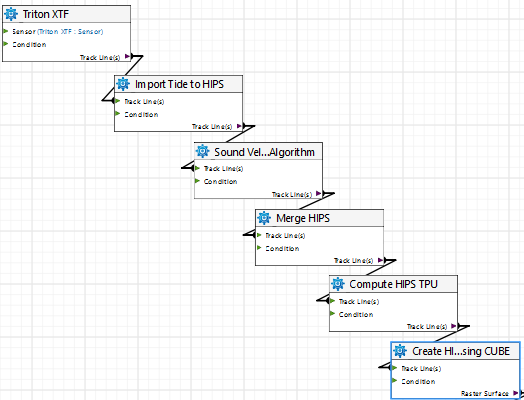
Process | A specific single tool type which performs a task with an output | An example of process: Create a HIPS Grid using CUBE. |
Tool | Any single item in the tools list. Tool is an all-encompassing term for all items in a model. • A tool in the model can represent a specific process applied to data, such as Create Variable Resolution Surface. • It can also represent a function such as Exists tool that verifies that a specific data set exists. See |
|
Port | Linkage points on a tool. A port links data to a particular parameter of a process, for example, input, output, condition and options. • An Input port is used for data to which the process is applied, for example, the Track Lines(s) port points to the location of the data.. • Output is what is produced by the process, such as a CSAR file or a surface. Process tools only have one output port. • See also Condition port. | |
Connector | A line drawn from tool to tool to show how one function connects to the other. Connectors will not attach Input to Input or Output to output. | For example, a line from an output port labelled Track Line(s) to a Coverage input port which indicates the output data will contribute to the coverage. |
Model | A group of tools and their associated properties, linked in such a way to perform a task or a series of tasks in a workflow, which is saved as a *.processmodel file. | |
Prompt | Use a prompt to set the requirement for a specific input value, which will be set at the time the process model file is run. \ This enables the process model file to be applied to different datasets. Users will be prompted to supply the required information when the model is run. | For example, setting a prompt for the location of the input dataset. See Prompt for value and Show as port. |
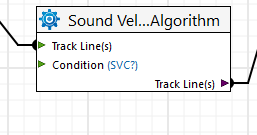
Condition port | A condition port is one that will allow the process model file to run if a specific condition is met. If met, the processing will continue. See also Exists tool | For example, you can set a condition in the Sound Velocity to prompt you to apply SVC. When the process model file is run, the Run dialog box will display an SVC field with a check box so that SVC can be included in that run of the process model file. |
Status Indicators
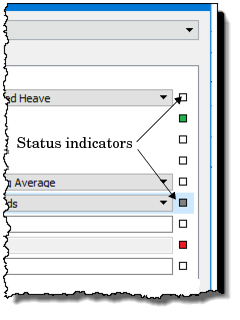
| The fields in the Properties dialog box are set to default values. If a setting is changed from the default value, the status indicator box for the field changes colour. • White: displayed when the property field is not enabled, or it contains the default value, or no value has been entered • Grey: indicates the field is no longer in the default state (a value has been entered, or the default value has changed). • Red: a value must be set for this field. • Green: indicates that the property has been set to be a port on the tool. Defaults can be restored by clicking on the indicator box and selecting “Reset”. See also Show as port and Prompt for value. |
|
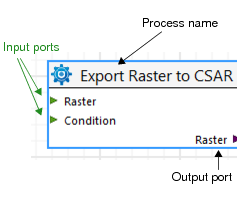 Sample tool: