1. Select the feature.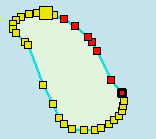
Pop-up | Edit Line > Redigitize |
Replace a portion of an existing edge.
Related commands:
Procedure
1. Select the feature.
2. Select the Edit Feature command.
3. Select a range of vertices.
To select a range of vertices, press and hold <Shift> and click on two vertices. All vertices between the two will be selected. |
4. Select the Redigitize Edges command.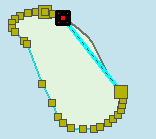
A straight line is drawn between the first and last vertex.
One vertex is highlighted by a black border.
5. Select any of the digitizing tools.
See Digitize.
6. Redigitize the line starting at the highlighted vertex.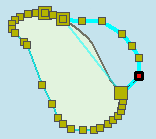
At any time while digitizing, you can change the digitizing tool or exit by selecting <Ctrl+Z>.
7. Continue adding vertices as needed.
8. Press <Enter> to finish redigitizing.
The shape of the edge is changed.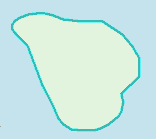
If the Edit All Features command is active, all features that share geometry with the edited feature are changed. Changes are listed in the Output window.