Menu | Tools > Bands > Smooth Elevations |
The Smooth Elevations command is used to apply a smoothing algorithm to an elevation band in a CSAR coverage. The results of the smoothing will be saved to a new band in the existing coverage.
Smoothing a surface is beneficial because it generalizes the elevation values and reduces the number of contours generated for the surface, increasing processing efficiency when running other processes.
Note that deep areas are not preserved when smoothing is applied. |
Two types of smoothing are available:
• Expand Shoals: Adjusts elevation values to expand shoals, decreasing spikes in data. This method uses radius settings to analyze the elevation values around shoals and move them upwards as needed to reduce variation in depths and still maintain hydrographic safety. Flat areas in the dataset will receiving minimal smoothing and true position will be maintained if present in the input band.
• Safe Laplacian Smoothing: Adjusts elevation values to create a smoothed surface suitable for producing generalized contours. This method iteratively compares every point in a coverage to the weighted average of the immediate surrounding points, and raises all points that are deeper than the average of those surrounding points. True position will be maintained if present in the input band. This is useful in reducing overall noise in a coverage.
If the smoothing results are not desirable, the new band can be deleted using the Remove Band command and the Smooth Elevations command can be run again with adjusted settings. See Remove Band for more information.
Interface
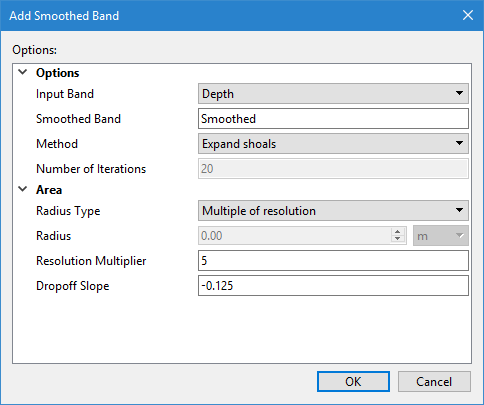
The Smooth Elevations command uses the following dialog box.
Option | Description |
Input Band | The band containing the elevation values to which smoothing will be applied. The drop-down list is populated with all bands in the source coverage that contain elevation values. |
Smoothed Band | The name to assign to the new band created to contain the smoothed elevation values. If a band with the same name already exists, that band will be replaced with the new smoothed band. 1. Type a name in the field. |
Method | The smoothing method to apply. Depending on the method selected, other fields will either be enabled or disabled. If enabled, those fields are required for the selected smoothing method. |
Number of Iterations | The number of times the process is run for a single run of the command. This option is only enabled with the Safe Laplacian Smoothing method. |
Radius Type | The type of radius to use to analyze elevations around shoals. Three types are available: • Fixed Radius: A single specified distance is used as the radius. • Multiple of Resolution: A multiple of surface resolution is used as the radius. • Hybrid: The sum of a specified distance and a multiple of surface resolution is used as the radius. If a radius value is required for the selected method, the Radius field is enabled. |
Radius | The distance and unit of measure for the fixed radius setting. This option is only enabled if the Radius Type is set to Fixed Radius or Hybrid. |
Resolution Multiplier | The multiplier value to use if calculating the radius using resolution values. |
Dropoff Slope | The steepest slope value allowed when adjust elevations around the shoal. This value is the ratio of vertical distance to ground distance and is entered as a negative number. |
Procedure
1. Select the coverage for which you want to apply smoothing.
2. Select the Add Smoothed Band command.
The Add Smoothed Band dialog box is displayed.
3. Select the Input Band containing the source elevation values.
4. Enter a name for the resulting Smoothed Band.
5. Select the smoothing Method to apply.
6. Define all options required for the selected smoothing method.
7. Click OK.
A new band is added to the coverage, containing the smoothed elevation values.