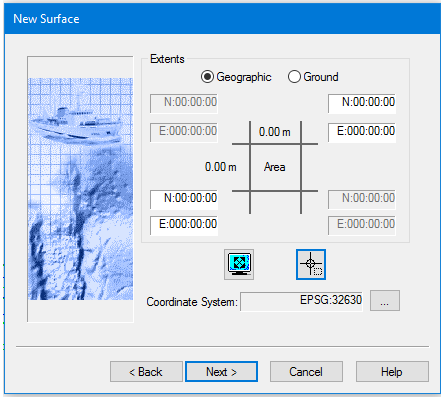
Set the extents and coordinate system of the new surface. The surface will be based on either the data currently visible in the Display window, or within a drawn area.
You do not need to select a data line or lines before starting to create a surface. If you do select a line, there is an option to use only the selected lines in the surface. If this option is selected, the extents settings will only apply to those selected lines.
Related command:
• New Surface (Regular Gridded)
Interface
In the Extents dialog box, the default setting for the coordinates is zero. When extents are set, the central part of the dialog box displays the dimensions of the extents in ground units as set in Tools > Options > Display > Units.
Options for setting extents | Description |
Type of coordinates | 1. [Optional] Set coordinates to Ground option. |
Set extents using current display
| 1. Zoom in on the area you want to include so that it fills the Display window. 2. Click the Current Display Extent button. The Extents boxes will display the coordinates for the current display area. § |
Set extents by drawing a bounding box
| 1. Click the Bounding Box button. The cursor in the Display window is shown as a cross-hair. 2. Press and hold the mouse button, and drag the cursor across the area where you want to create the surface. A rectangular box is drawn across the area and its coordinates are displayed in the extents fields. To move the bounding box: 1. Click inside the box (cursor changes to a four-headed arrow) and drag the box to a new location. To resize the bounding box: 1. Click on the box handles at NE or SE and drag to resize. |
Set extents by entering coordinates§ | Enter the northeast and southwest extents • by clicking in one of the appropriate fie Ids and typing the coordinate data, or • by using the arrow keys to toggle the values in the entry fields. |
Coordinate System | The Coordinate System field displays the system used for the open project. To apply a different coordinate system to the surface: 1. Click Browse. 2. Select an alternate coordinate system from the Select Coordinate System dialog box. See Coordinate Reference System. |
Procedure
1. [Optional] Set coordinates to Ground option.
2. Select a method to define the extents of the surface.
3. [Optional] Change coordinate system.
4. Click Next.

