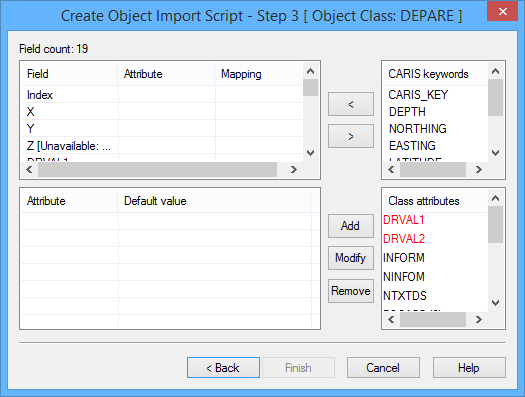
The Create Object Import Script - Step 3 dialog box is displayed.
Option | Description |
Field Count | The number of fields in the import file. This cannot be changed. |
Field table | A list of the fields. Columns are: • Field: The fields from the source file, taken from the first row of the file. • Attribute: Keywords assigned to the field. These are assigned using the CARIS Keywords and Class Attributes options. If you want to ignore a field, do not assign a keyword or class attribute. • Mapping: Mapping assigned to the field. Double-click on the field to insert mapping values. See Mapping for details |
CARIS Keywords | Keywords or attributes used to define the fields from the import file. 1. Select a field row. 2. Double-click on a CARIS keyword. The clicked item is displayed in the Attribute column of the field table. You would associate keywords such as LATITUDE and LONGITUDE or EASTING and NORTHING with the position fields in the import file. You would associate CARIS_KEY with the unique identifier of the input data. You can also use the << and >> buttons to add and remove keywords from the Attribute column. If you want to ignore a field, do not assign a keyword. |
Class Attributes | Attributes that can be associated with a record or field from the file being imported. Mandatory attributes are displayed in red. To assign an attribute to a field: 1. Select a field row. 2. Double-click on a class attribute. The clicked item is displayed in the Attribute column of the field table. |
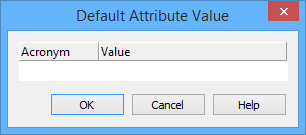
Attribute table | Here you define default attribute values for all features being imported. 1. Double-click in a field in the Attribute column or click Add. The Default Attribute Value dialog box is displayed.
2. Select an acronym from the list. 3. Enter a value. 4. Click OK. The attribute acronym and associated value are displayed in the Attribute and Default Value fields. The attribute is removed from the Class Attributes list. To change the value, double-click the attribute or select it and click Modify. To remove an attribute value, select it and click Remove. The attribute is no longer associated with the object and is now available again in the Class Attributes list. |
1. Assign any necessary keywords and class attributes to the fields in the import file.
Mapping
Mapping lets you assign a new value to an existing one. For example, if colour values are stored in the source as text, you import them as list-type or enumeration-type attributes. If a value is in feet, you can convert it to metres.
From the Fields list, assign any mapping values as follows
2. Double-click the Mapping column.
One of two Mapping Editor dialog boxes is displayed.