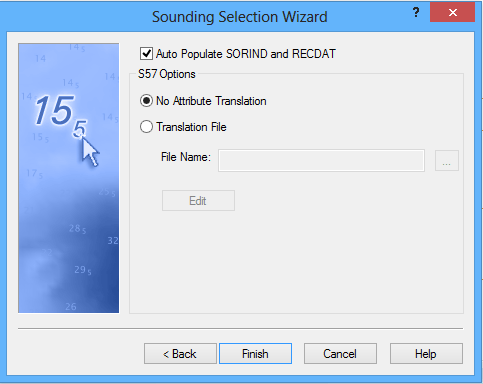
By default the options here are set to automatically enter information into SORIND and RECDAT attribute fields, and to map surface attributes to specific S-57 attributes.
Auto Populate SORIND and RECDAT
These attributes can be automatically populated:
• SORIND (information about the source of the sounding) and
• RECDAT (date the object was captured, edited or deleted).
1. [Optional] Disable the Auto Populate SORIND and RECDAT check box so that information on these attributes is not added to the soundings in the HOB file.
Auto populating the SORIND and RECDAT attributes can increase save and export times as well as file size, particularly with large, high-density data sets. |
S-57 options
The other S-57 option is to map the surface attributes to S-57 attributes, using a translation file. The translation file has a BSST file extension and is in XML format. See Translation file.
The No Attribute Translation option is set by default.
To continue without mapping any attributes:
2. Click Finish.
Translation file
To use a translation file to map attributes:
1. Select the Translation File option.
2. Click Browse to select an existing BSST translation file (or to specify a name for a new translation file).
3. Click Edit to set the mapping for surface attributes to S-57 attributes.
The Edit Translation File dialog box is displayed.
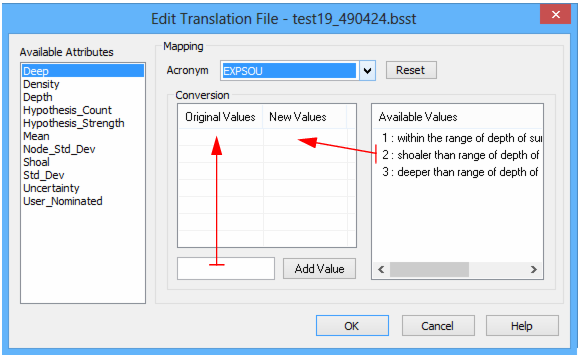
4. Select a surface attribute from the Available Attributes list.
5. Select an appropriate S-57 acronym from the drop-down list.
If no mapping is possible between the selected attribute and the chosen S-57 attribute acronym, “No conversion available” is displayed.
If conversion can be applied, the dialog box will display the available values that can be mapped.
HIPS attributes of Integer data type may be appropriate to map to S-57 attributes, using a conversion formula. A conversion formula is created by inserting values and appropriate mathematical operators into the Conversion area, as in the example below.
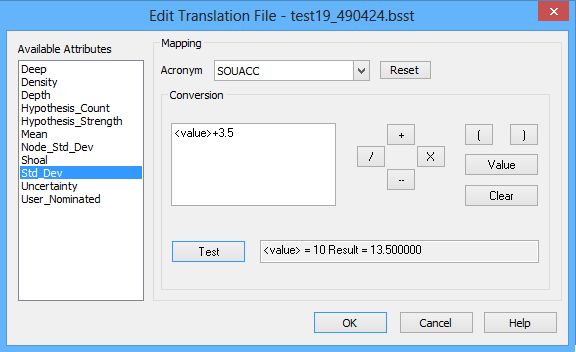
To create a conversion formula, for example, to map Std_Dev to SOUACC, (sounding accuracy attribute):
1. Click Value to use the value of the selected surface attribute in the conversion formula.
• This places the <value> variable in the formula window.
2. Insert mathematical operators using the +, -, x, / buttons.
3. Type the numeric value by which to adjust the original value, if needed.
• In this example, adjust the original value by adding 3.5.
4. Click Test to see the formula.
5. If you want to erase the formula, click Clear.
6. Click Reset to remove the mapping of surface attribute to S-57 attribute.
7. Click OK to save the mapping settings and return to the S-57 Options dialog box.
8. Click Finish.
The soundings that meet the criteria set in the wizard are selected, and corresponding sounding features are created on the selected feature layer.
You can change the display of the soundings in the Properties for the feature layer. See “Properties Window” on page 518. The sounding layer can be saved to a HOB file, using the File > Save.