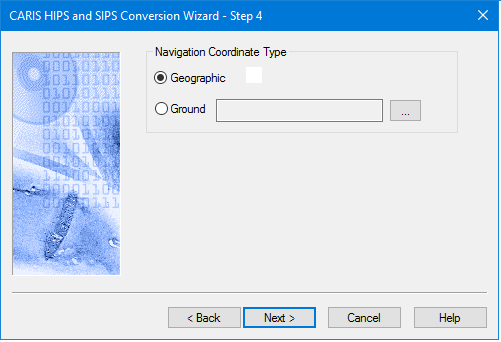
This step defines the type of horizontal coordinate reference system that was used to record navigation data when the raw data was stored in a projected CRS.
Default is set to Geographic, and uses the ellipsoid/datum from the HIPS vessel file (*.hvf).
The LAS import process has been updated to automatically read the CRS from the file during import. In this case, the Override coordinate reference systems option is displayed instead of the Navigation Coordinate type field. If this option is used in LAS conversion, then Geographic or Ground can be selected as described below. See LAS Options for further information. |
Interface
The Navigation Coordinate System is set in this dialog box:
Procedure
1. Select one of:
• Geographic: navigation data is recorded as latitude and longitude coordinates.
• Ground: navigation data is recorded as eastings and northings.
2. If you select Ground, click the Browse button to open the Select Coordinate Reference System dialog box.
3. Select a CRS and click OK.
4. Click Next to continue the conversion process.
Setting Geographic as Navigation Coordinate Type for Hypack data: Hypack format (HSX) does not store Geographic coordinates and GPS Height information. If recorded, this data is stored in RAW files. When both the Geographic option and Multibeam options are set during conversion, the converter will search for *.raw files in the same directory with the same line name to get this information. |