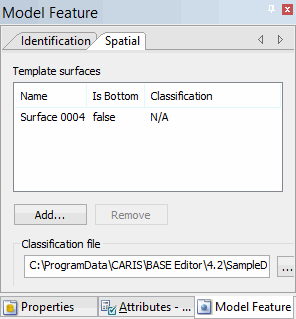
To set the spatial settings, perform the following steps:
1. Select the template you want to modify in the Model window, or superselect the template in the Display window.
The selected template is now the active reference model feature.
2. In the Model Feature window, select the Spatial tab.
The Spatial tab is displayed.
3. Select a template surface from the Name list.
4. [Optional] If the selected surface is located at the bottom of the model, set the Is Bottom value to True (the default value is False).
5. Select a Classification option (the default value is NA).
6. [Optional] To add a surface to the selected template, click Add, select an available surface from the list, and click OK.
7. [Optional] To remove a surface from the selected template, select the surface to remove and click Remove.
The Remove button is not available if the selected surface is the only remaining surface in the template. |
Filling template holes
Templates with holes in them are evaluated as incomplete. For a hole cut in a surface template using another surface you must fill these holes by using the cut-out surface (for more information, see Surface Holes).
1. Select the incomplete template in the Model window or superselect it in the Display window.
2. Select the Spatial tab in the Model Feature window.
3. Click Add.
4. Select the cut-out surface.
5. Click OK.
The template hole is filled.

6. [Optional] For each hole to fill in the selected template, repeat steps 4 through 6.