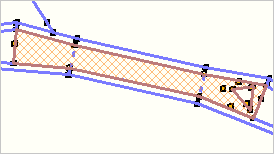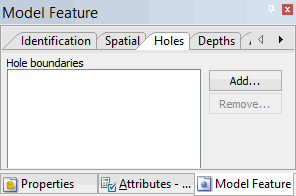
On the Holes tab of the Model Feature window, you can specify other overlapping surfaces as holes in the currently selected surface.
When you make a hole in a surface belonging to a template, the same hole is made in the template. You must fill-in the template hole before it can be validated as complete (see Filling template holes).
1. Select the desired surface in the Model window or superselect it in the Display window.
The selected surface is now the active reference model feature.
2. Select the Holes tab of the Model Feature window.
The hole, or surface, boundaries in the selected surface (if there are any), are listed.
3. To add a hole to the selected surface, click Add.
The Add Hole dialog box is displayed.

4. Select one or more overlapping surfaces.
5. Click OK.
The surface holes are included in the selected surface.