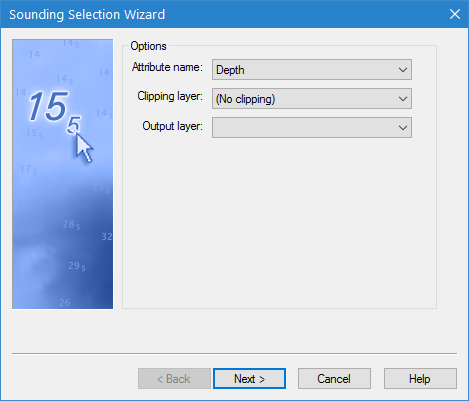
The first step of the Sounding Selection wizard is used to select the input and output layers for the sounding selection.
Interface
Step 1 of the Sounding Selection wizard is shown below.
Option | Description |
Attribute name | The attribute band of the input coverage to use as the height source for the sounding selection. If a band was selected in the Layers window when the command was initiated, that band will automatically be selected. |
Clipping layer | Use a coverage area (cvrage) object on a feature layer to limit the area of the input coverage that will be included in the sounding selection. Only soundings within the boundaries of the cvrage object will be included in the output. 1. Select the feature layer containing the cvrage object from the Clipping layer drop‑down list. |
Output layer | The feature layer on which to create the new soundings. If this layer already contains soundings, they will be maintained in the output and the suppression options specified will prevent the new soundings from being placed close to the existing soundings. |
Procedure
1. Create or open a feature layer.
2. Select the source coverage in the Layers window.
3. Select the Sounding Selection command.
The Sounding Selection Wizard is displayed.
4. Select a Attribute name to use for the height source of the new soundings.
5. Select a Clipping layer if applying clipping.
6. Select the Output layer for the new soundings.
7. Click Next.