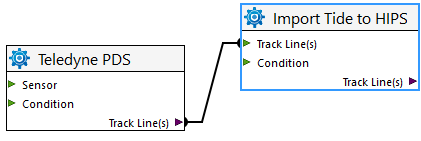
Tools are connected to define the sequence in which the processes will be applied to data. The output of one tool is the input of the next tool or tools to which it is connected.
A tool for a process, such as Import Tide, can have multiple inputs if necessary, but only a single output port. Tools for conditions can have more than one output port, for example, as in the Exists tool.
To connect two tools:
1. Click on a port on one tool, for example an output port, and drag a line to the input port of the second.
2. Release the line and it will automatically attach to the second process.
Move a tool
To move a tool around in the model view window:
1. Click on the title bar of the tool and drag it to a new location.
The cursor changes to a hand to indicate that the tool can be moved.
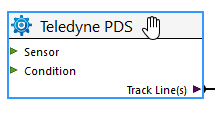
2. Drag the tool to the new location.
Delete a tool
To delete a tool from the process model:
1. Select the tool.
The blue outline on the tool indicates it is selected.
2. Select a Delete command.
Menu | Edit > Delete |
Pop-up | Delete |
key | Delete |
3. To confirm the deletion, click Yes.
The tool is removed.
Delete a connection
To delete a connection:
1. Click on one end point of a connector.
The line will be highlighted in blue.
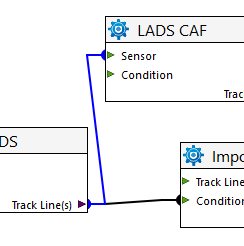
2. Press Delete to remove the connector.
Tools can be connected to as many other tools as logic allows.
Prompt for value
Prompts enable users to enter a specific value for a property each time the model is run, instead of setting a value while building the model file. This adds the ability to apply process model files to more than one dataset.
For example, when importing data to HIPS, the Input port can be set to prompt for the specific data type being converted.
To set the model file to request data at run time a value for the prompt must be set:
1. Right-click on the port name, and select Prompt for value.
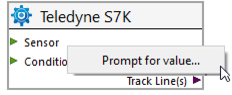
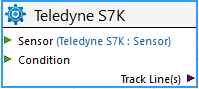
2. Accept the default value, or change it to better describe the required data.
This will display the prompt value next to the port name.
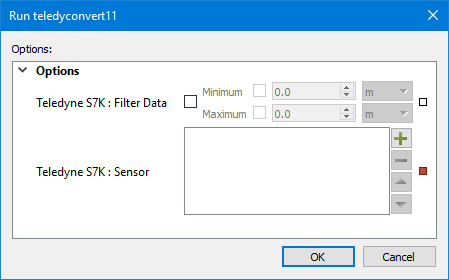
When the process model file is run, this prompt will appear as a field in the Run dialog box.
Show as port
Properties and options listed in the Properties window for a selected process tool can be added the tool. This enables setting specific values for the property at run time, and disables the field in the Properties window.
To add a property as a port on a tool:
1. Select the tool.
2. In the Properties window, right-click on the status indicator box for the specific property.
3. Select Show as port from the pop-up menu.
The property is added as an input. The Show as port command has a green check mark, indicating it is applied in the tool. This new port can now have a connection from another process, or be set as a prompt.
4. [Optional] Use the Prompt for value command to set the value for the new port.
5. Save the file.
Status indicators in the Property window show whether a property is set as a port or from a setting entered during the creation of the process model file. See Status Indicators.
To remove the port from a tool:
1. Right-click on the status indicator box for the specific property.
2. Select Show as port from the pop-up menu.
The port is removed from the tool, and the command no longer has a check mark.
Reset
Fields in the Properties window for each process are set to default values. If a setting is changed from the default, the status indicator box for the field changes to grey.
Defaults can be restored by clicking on the indicator box and selecting Reset.
Exists tool
The Exists tool can be used to determine if the specific data needed by a process can be located.
The input to the Exists tool is the location of the data (track lines, or specific surface, for example). The output ports represent the conditions “Does Exist” or “Does Not Exist”. Each of these ports can be connected to ports on other tools.
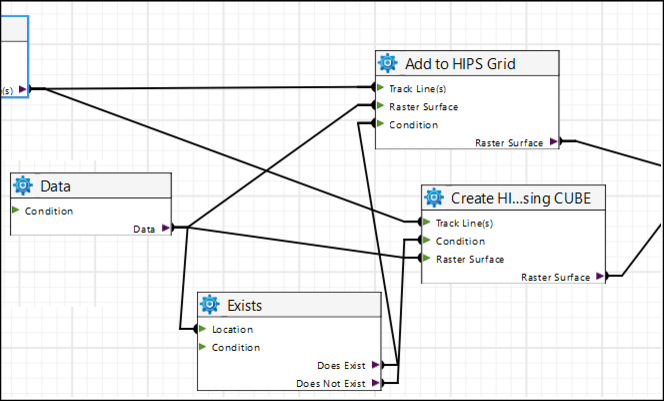
In the process model image below, conditions specified in the Exists tool are connected to the Conditions ports in the Add to Surface and Create HIPS Grid using CUBE tools.
In this example, the Exists tool verifies if the surface exists, and if it does, it adds the new data to the existing surface. If the surface does not exist, it will create a new surface.