Interface
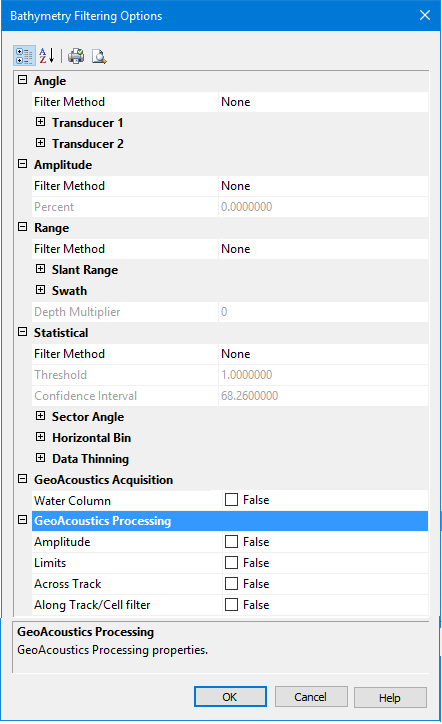
Options for additional bathymetry filtering option are displayed in this dialog box. Brief descriptions for each selected field are displayed in the Description Panel at the bottom of the dialog box.
The types of filters which can be applied are:
You can customize these filter settings. When default settings are changed, the new values are retained so they can be used the next time bathymetry filtering is applied during conversion
Angle filtering
The Angle filtering uses the angles from the raw range angle information to filter out data falling above and below set values.
Filtering can be done using Transducer 1 or Transducer 2, or both. The default setting is to use both.
If you select “None”, the fields are greyed out to indicate that the angle filters will not be applied.
1. Select a filtering method from the Filter Method drop-down list: Transducer 1 or Transducer 2 or both.
2. For each transducer, type values for the Minimum and Maximum angles, or retain the default values.
• For GeoAcoustics conversion the values are 30 and 75
Amplitude filtering
The Amplitude Filtering option filters soundings according to amplitude value. For each ping (port and starboard pings are handled separately), the min/max amplitude values are obtained, and samples that fall below the selected percentage (0-50%) are rejected.
To set the percentage:
3. Select Percent from the Filter Method field.
This activates the next field.
4. Type the percentage value below which data will be rejected.
Range filtering
The Range filtering converts soundings within a specified distance (in metres). Soundings outside of this range are not converted.
Filtering can be done using Slant Range, Swath or Depth Multiplier options. The default setting is “None”, and the range filter fields are greyed out to indicate that range filtering will not be applied.
To apply range filtering:
1. Select one or all of the range filter options from the Filter Method drop-down list.
Slant Range
The Slant Range option will filter out all data outside a specified slant range.
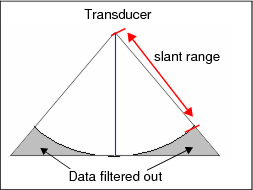
If Slant Range is selected:
2. Type minimum and maximum values for the range outside of which data will not be converted. Values can fall between 0 and 15000. The default range is 0 to 200.
Swath
The Swath option will filter all data outside the swath as determined by a set distance from nadir to port and/or nadir to starboard.
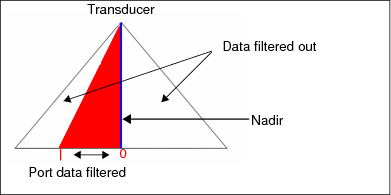
Port values define the distance from nadir to port outside of which data will not be converted. Starboard values define distance between nadir and starboard.
To use Swath filter:
1. Select Type Port and/or Starboard values between 0 and 1000 for the swath range. The default value is 50.
Depth Multiplier
Use the Depth Multiplier option to filter out data outside of a swath distance determined by multiplying the nadir depth by a selected value. The distance this generates is in the same units as the depth. For example a depth of 20 metres multiplied by a set value of 4 will filter out any data beyond 80 metres of swath distance.
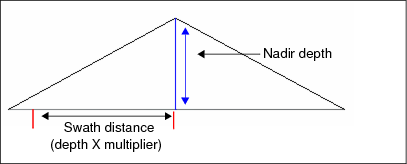
To use Depth Multiplier:
2. Type a multiplier value between 0 and 50. The default multiplier is 8.
When all bathymetry filtering options are set:
3. Click OK to continue the conversion process.
Return to Bathymetry Filtering Options
Statistical filtering
Sector Angle and Horizontal Bin filters can be used separately or in combination with Data Thinning. By default, none of these methods are selected. To apply statistical filtering:
1. Select a filtering method from the Filter Method drop-down list. By default there is no method set.
Statistical filters must have a threshold value or confidence level set. The threshold values can be 1, 2, and 3 (standard deviation or sigma). The default setting is 2 sigma.
2. Type a standard deviation value of 1, 2 or 3 in the Threshold field.
This generates the standard deviation expressed as a percentage in the Confidence Interval field, for example, when 2 sigma is set as the threshold, 95.44 is displayed in as the confidence interval. This field is read-only.
The Sector Angle and Horizontal Bin methods both use a defined area to determine the number of soundings to filter.
Sector Angle
Sector angle filtering uses a set angular filter area, measuring between 0.3 and 9.0 degrees. The default value is 1.
3. Type a value for the Size of the sector angle.
Horizontal Bin
Horizontal Bin filtering divides the swath into bins of a defined size in metres. Values between 0.03m and 5m can be set. The default value is 0.3 m.
4. Set the bin Size to a value representing distance on the ground.
Setting the bin size automatically calculates the number of bins of that size bins in the swath, and displays the value in the Number of Bins field.
Data Thinning
Only used with either of the other two statistical methods, thinning compares filtered values from a bin of data against either the mean or median value in the bin and retains the closest value to the mean or median.
The Thinning Factor uses a power of two reduction control (1/2, 1/4, 1/8, etc. to 1/256) so that one of two, one of four, or one of eight soundings can be converted per swath sector. The default value is 1/4.
5. Select a value for Thinning Factor from the drop-down list.
6. Select Mean or Median from the Depth Comparator drop-down list.
If you leave Convert Thinned Data as Rejected set to True, all data will be converted. Data which does not meet the filter value will be converted with “Rejected” status.
7. Set Convert Thinned Data as Rejected to False to not convert data that is filtered out. This is set to True by default.
Procedure
1. Click OK to accept the default settings for filtering and continue with conversion.
2. Alternatively, set specific filtering options.
3. Click OK to continue the conversion process.