
Each sounding in a dataset carries status flags that are turned on and off as needed. Soundings in the subset views can be interactively examined and their status flags modified. Each sounding begins with an Accepted status. If a sounding is flagged as Rejected during processing, it can always be returned to the Accepted status without loss of data.
In BASE Editor, soundings can have a status of:
• Accepted
• Rejected
• Designated
The Accepted and Rejected flags are explained below. For information on Designated, see Designated.
To set sounding status flags:
1. Select the appropriate soundings in one of the subset views.
The selected soundings are added to the Selection window. Right-clicking one of the soundings in this window will display a pop-up menu.
From this menu you can:
• assign a new status to any sounding(s) highlighted in the Selection window,
• find and designate a sounding representing a shoal,
• copy the information about the selected sounding(s) to a text file, or
• clear the selection.
2. Select the appropriate command to either Accept or Reject the soundings.
Tool |
|
Pop-up | Selection window > [highlighted sounding] > Accept/Reject |
The status flag of the selected soundings is changed.
Any soundings with the Rejected flag will not be included when the Point Cloud is imported or when it is used to perform tasks that create an output surface. |
If the subset bounding box is moved or resized, or the editor is closed, you will be prompted to save your changes.
Designated
The Designated flag allows you to identify the shoalest sounding in a selected soundings area. This flag is provided to ensure that the shoalest depths are maintained in charts and other standard hydrographic products.
When designating soundings, it is possible to enter and save metadata for the selected soundings. In order to do this you must have the Prompt for designated attributes option enabled in the Coverage category in Tools > Options before beginning the designating process.
1. Select the shoalest sounding from a cluster of selected soundings.
2. Select the Designate command.
Tool |
|
Pop-up | highlighted sounding > Designate (Selection window) |
If the attributes option is enabled, the Designate Node dialog box is displayed and you must continue with the next step.
If the attributes option is not enabled, the sounding is flagged as designated and the task is complete.
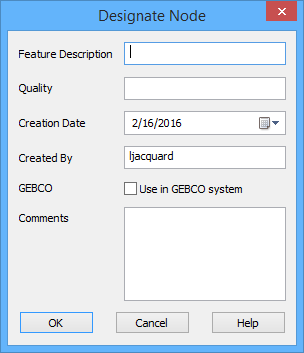
The fields in this dialog box are not mandatory. Information can be entered in each field as needed.
3. Enter a brief textual description for the selected point in Feature Description.
4. Enter a brief explanation as to the validity of the sounding and the security protections in Quality.
The Creation Date and Created By fields are both populated automatically, but can be changed if necessary.
• The Creation Date field identifies the date the sounding was designated or last modified.
• The Created By field identifies the user account name that was used to designate the sounding.
5. Change the values for Creation Date and Created By, if necessary.
6. Click the Use in GEBCO system check box if the selected data uses the GEBCO (General Bathymetric Chart of the Oceans) system.
7. Add any additional comments as needed.
8. Click OK.
The selected sounding is flagged as designated. When you close the Subset Editor, a message will be displayed asking if you would like to save the changes.
9. Click Yes to save the designated flag on the sounding.
A Designated layer is added to the Layers window. If a Designated layer already exists, the designated sounding is saved to that layer. Properties for this layer can be defined in the Properties window.
Find and Designate
This flag locates the shoalest sounding in a selected soundings area. Similar to the Designate command, this command is provided to ensure that the shoalest depths are maintained in charts and other standard hydrographic products.
The Find and Designate command is also available when viewing 2D data in the Display window. See Designate Soundings for more information.
When designating soundings, it is possible to enter and save metadata for the selected soundings. In order to do this you must have the Prompt for designated attributes option enabled in the Coverage category in Tools > Options before beginning the designating process. .
To find and designate a sounding:
1. Select the Find and Designate command.
Tool |
|
Pop-up | highlighted sounding > Find Designated Sounding (Selection window) |
If the attributes option is enabled, the Designate Node dialog box is displayed and you must complete the appropriate fields before the soundings can be designated.See Designated for instructions on completing the fields.
If the attributes option is not enabled, the shoalest sounding is located and flagged as designated.
Auto-Cursor Mode
If setting status flags on a number of individual soundings, the auto-cursor mode tool can be useful. This tool allows you to select the status flag you want to assign to each sounding, and then simply click each of those soundings individually to apply the selected flag.
1. Select the Auto-Cursor Mode command.
Tool |
|
2. Select the status flag that you want to assign (Accept, Reject, or Designate).
Tool |
|
3. Click each of the soundings to which you want to assign the status.
4. Select the Auto-Cursor Mode command again when finished.
All soundings selected while in auto-cursor mode were flagged with the selected status.


