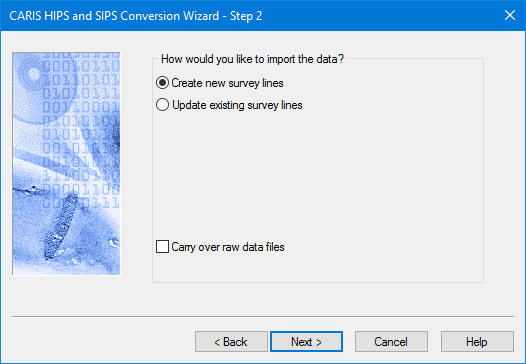
Before selecting the data to be converted, some file formats have import options that must be set.
Search for Files with Temporal Overlap
Create or Update survey lines
The conversion process creates all new data files within the project structure. However, if line directories already exist within your project, they are deleted and replaced with the new survey data.
Instead of overwriting all existing data, you can choose to update only certain data. For example, you can opt to update only the navigation information on your processed survey lines, or to add backscatter imagery data to a project, without overwriting any of the rest of your processed data.
At present this option is available for these formats:
• Hypack (HSX/81X)
• Teledyne RESON PDS
• Kongsberg
• XTF
These options are presented in the Step 2 dialog box of the Conversion Wizard, before the actual data files are selected.
1. Select Create new survey lines to save new data to the project, overwriting any existing data. This is the default setting.
2. Select Update existing survey lines to choose which kinds of data to replace in your existing project. By default, all the types are set to overwrite your existing data. be overwritten. Clear the check box(es) for the data you do not want overwritten. (If the lines don't exist, no data is converted.)
• Overwrite Bathymetry: When checked on, this option will cause the SlantRange, ObservedDepths and ProcessedDepths data files to be replaced by the converter.
• Overwrite Navigation: When checked on, this option will cause the Navigation and SSSNavigation data files to be replaced by the converter.
• Overwrite Motion: When checked on, this options will cause the Gyro, Heave, Pitch, Roll, DeltaDraft, CableOut, SensorHeight data files to be replaced by the converter.
• Overwrite Side scan: When checked on, this option will cause the SideScan and SSSProcessedSideScan data files to be replaced by the converter.
• Overwrite Backscatter: When checked on, this option will cause all 'imagery' related data files to be replaced by the converter (i.e. all data files needed for GeoCoder processing).
Carry Over Raw Data Files
The conversion process for some data formats can copy the original data files to the processed folders. This process is optional. By default, raw data files are not carried over. However, the location of the raw files is referenced in the Observed Depths file.
If you select the Carry Over Raw Data Files check box, your data will be converted and a copy of the raw files placed in the line folders.
3. Select Carry Over Raw Data Files to copy raw data files to the line folders.
If a process uses raw data, and the raw data has been carried over, HIPS will use the files in the HDCS line folder.
If the raw data file is not carried over then HIPS will search the referenced location of the raw files. If the data is not found, you will be prompted to have HIPS search for it, or to search for it yourself.
4. Click Next.