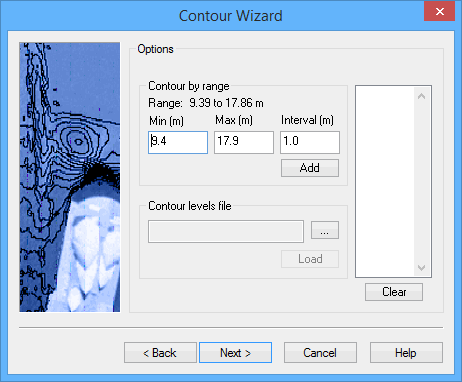
The Contour Wizard - Options dialog box is displayed.
Contours are created according to the elevation values in the source surface. You can have contours created at regular intervals in the elevation or you can load a file of predefined levels to have contours created at specific values. If you are creating contours by range, continue with the next step. If you are loading an existing file of contour levels, go to Contour Using an Existing File.
Contour by Range
The Range field provides the range of elevation values present in the source. When contouring by range, you can use the entire range, or you can specify a range of values for which to create contours.
1. In the Min (m) field, type the minimum value to include in the range.
2. In the Max (m) field, type the maximum value to include in the range.
The Interval is the elevation difference between each contour in the range of values.
3. Type an Interval (m) value.
4. Click Add to generate the contour levels for the specified range and interval.
The list box at the right will be populated with the contour levels. This list can be edited using a pop-up menu, if necessary. See Contour Levels List Pop-Up Menu for more information.
5. Click Next.
Contour Using an Existing File
A contour levels file is a text file that contains a list of predefined levels at which to create contoursThe following is an example of a contour levels file.
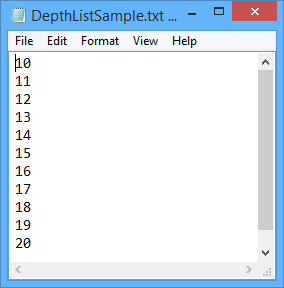
A sample list is provided when BASE Editor is installed. This file can be used, or you can make a copy of the file and edit it as needed. The sample list, DepthListSample.txt, can be found at:
C:\ProgramData\CARIS\BASE Editor\<version>\SampleData\
1. Click Browse (...) to select a contour levels file.
2. Click Load to apply the contour levels from the file.
The list box at the right will be populated with the contour levels. The list can be edited using a pop-up menu, if necessary. For more information on contouring, see the Contouring topic in the Tools Menu chapter of the CARIS BASE Editor Reference Guide.
3. Click Next.
Contour Levels List Pop-Up Menu
Once the contour levels list is populated, a pop-up menu is available for the list. The following commands are provided:
• Insert: Display the Add Contour Level dialog box to manually add a specific contour level to the list. This option is useful if a contour is needed at a specific level, but the level was not generated automatically.
• Delete: Remove the currently selected level from the list. To delete multiple levels, press and hold <Ctrl> while selecting the levels and then select this command.
• Save: Save the current contour levels list to a text file for future use with the Contour levels file field. Specify a name and location for the file in the Save As dialog box that is displayed.
• Clear: Remove all current levels from the list. This functionality is also available through the Clear button.
Go to Contour Wizard - Reference Model Surfaces for the next step in the wizard.