The Contour by Reference Model command allows you to create contours where the bathymetry of a surface crosses a reference model. Contours at reference model depths identify regions of the model that do not conform to the bathymetry. The bathymetry can come from:
• Gridded surfaces stored locally (that is, on the machine you are currently using).
• Database surfaces that have been opened in BASE Editor using Open Selected Surfaces from Database. See the Open Surfaces from Database topic in the CARIS BASE Editor Reference Guide for more information.
• A TIN generated from a Point Cloud or a set of point features.
To create contours by reference model:
1. Open the reference model containing the surfaces for which you want to create contours.
2. Open the surface containing the bathymetry that you want compared to the reference model.
3. Create or open a feature layer.
For details on creating a new feature layer, see the CARIS BASE Editor Reference Guide.
4. From the Layers window, select the BASE Surface you want to create contours for (so that it is highlighted).
In order for the contouring command to be enabled, you must have the root layer of a gridded surface selected and a feature layer open. |
Menu | Tools > Engineering Analysis > Conformance > Contour By Reference Model |
5. Select the Contour by Reference Model command.
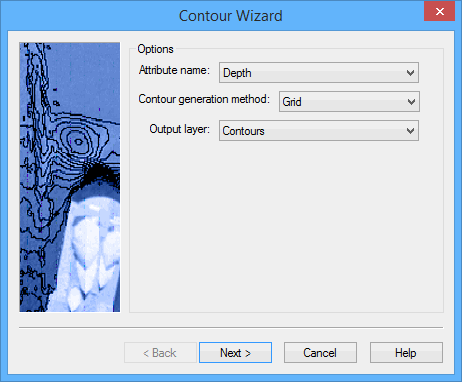
The Contour Wizard is displayed.
In this step you need to specify the attribute name, the gridding method, and the output layer for the contours. The attribute is the layer of the surface that will be used as the height source for creating the contours. The output is the feature layer that will be used to store the contours. The gridding method is one of Grid or True Position.
6. Select a layer to use as the height source from the Attribute name list.
7. Select a Contour generation method.
8. Select a feature layer for storing the contours from the Output layer list.
9. Click Next.
Go to Contour Wizard - Options for the next step in the wizard.