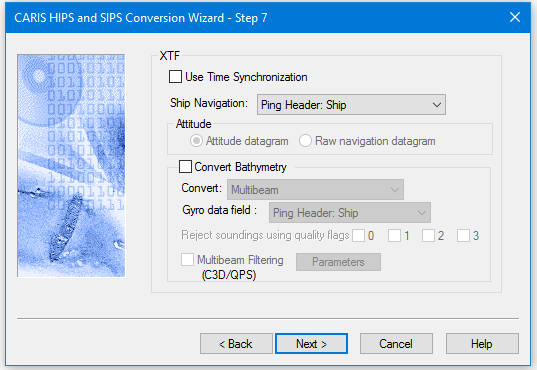
The Triton XTF format converter contains options for converting both bathymetry and side scan.
Option | Description |
Use Time Synchronization | Each XTF file needs to be referenced to a real world time stamp. Setting this option to ON means a check is made to see if all the files can be referenced to the same time stamp, instead of different one for each file. XTF files with a different time stamp will be ignored. By default this is turned off, which means each file will determine its own reference time. |
Ship Navigation | 1. Select the source of navigation data from the drop-down list. If you select Raw Navigation Records, the option to set Attitude data source is activated. |
Attitude | Select either Attitude diagram or Raw Navigation datagram. |
Convert Bathymetry | 1. Click the Convert Bathymetry check box. |
Convert: | 1. Select a bathymetric data format from the Convert Bathymetry drop-down list: • Multibeam • Multi-transducer • Single beam from records {Prim=0}, {Prim=1} or {Prim=2} (if there is more than one channel of data, identify which channel contains the primary data.) • Single beam from AUX (1,2,3, or 4). |
Gyro data field: | 1. If the Ship Navigation source is set to Raw Navigation Records, and the Attitude source is set Attitude Datagram, select either Attitude Packets or CMG from Navigation (Course Made Good from Navigation) from the drop-down list. 2. If the Ship Navigation source is Raw Navigation Records, and the Attitude source is Raw navigation datagram, select either Raw Navigation Records or CMG from Navigation from the drop-down list. When any of the other Ship Navigation source options are selected, these Gyro sources options are available: • Ping Header: Ship • Ping Header: Sensor • Attitude Packets • CMG from Navigation • CMG from SSS Navigation • Header Gyro Records |
Reject soundings using quality flags | The XTF format attaches quality flags to soundings. For example, 0 represents the lowest quality and 3 represents the highest. Soundings rejected with a quality flag are flagged as Rejected by Disabled Beam in HIPS. 1. Select a quality flag so the soundings with that specific flag value are rejected when converted to HIPS format. |
Multibeam filtering (C3D/QPS) | 1. If you are converting C3D or QPS data, select the Multibeam Filtering check box and click Parameters to select filtering options. |
Procedure
1. Set options.
2. Click Next to set Side Scan options.