Menu | View > Toolbars > Utilities |
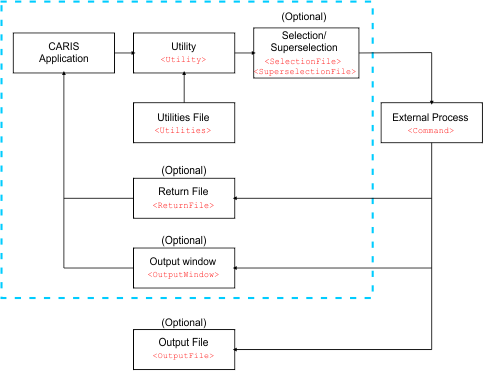
External processes can be run using customized macros called utilities. The primary purpose of a utility is to run external tools on a subset of the open data, but other, more general, processes can also be run. Utilities can do the following:
• Export selected vector features to HOB, GML or Shapefile.
• Open data in a CARIS application or in a third party application.
• Process or analyze the data, using anything that can be run from a command line, such as
• a CARIS Batch process
• a PL/SQL script
• a Windows command
• a Python script
• Open a specified output file automatically in the original application.
The utilities are user-defined macros in XML format files. A default file called utilities.xml is provided and can be found in c:\Program Files\CARIS\CARIS\<version>\system\Utilities.
Utilities are added to the Utilities toolbar.
This diagram shows how the utilities file is used to initiate an external process:
Procedure: Run a utility
To display the toolbar:
1. Select the Utilities command.
The Utilities toolbar is displayed.
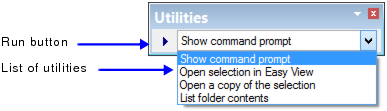
If no utilities file exists, the toolbar is inactive.
To use a utility:
2. Select a utility from the list.
3. Select one or more features.
The Run button becomes active.
4. Click Run.
The external process begins and this message is displayed.
If the selection is opened and modified in an external application, you must save the file from the external application to the name and path set in the <ReturnFile> tag.
For example, if:
• the utility opens a text editor and displays the features in GML format, and
• the return file is named UtilityTest.gml
you must save the file as UtilityTest.gml from the text editor.
The data will then be re-opened in the Output window or as an external layer.
You can use Import Selected Objects or Import as Update to integrate the data.
Procedure: Create a utility
First create a folder for your utilities and define it using options.
1. Create a folder.
This folder can have any name and be in any location you choose.
2. Select the Tools > Options command.
3. Select the Utilities option on the Files and Folders tab.
4. Click browse (...) and select the folder you created.
All utilities you create must be placed in this folder.
Now create a utilities file:
1. Create a utility using any text editor as described in Utilities File.
2. Save it as an XML file in the utilities folder.
3. Close CARIS and reopen it.
Any utilities in the defined folder will be listed on the Utilities toolbar.