Property | Description |
|---|---|
General | |
Feature Count | The number of features on the layer. This is read-only and cannot be modified. |
Override Colour | Display features in a specific colour. For example, to view lights or buoys more clearly, draw the features in green or red. In this example, two layers named Lines and Points were created using the Layer by Feature Type command. The override colour was set to red for the Points layer, so all points are shown in that colour:
1. Enable the check box. 2. Select a colour from the colour palette. 3. Refresh the display. |
Show Nodes | Display the nodes of features on the layer.
Line nodes are displayed in blue, text in green, and points in orange. 1. Enable the check box. 2. Refresh the display. |
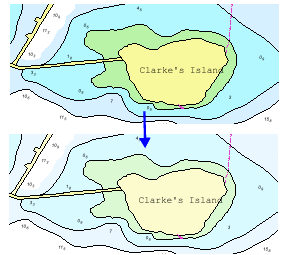
Transparency | Apply a transparency value to area features in an HPD database usage, filtered layer or S-57 file layer. This can be useful when comparing two similar layers, or when the filled areas in one layer hide data in another.
The transparency is a percentage. 0% is fully opaque; 100% is completely transparent. 1. Select a percentage from the list. 2. Refresh the display. |
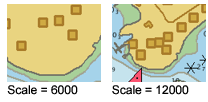
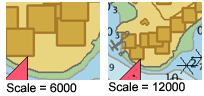
Symbolization Scale | Set a display scale for symbols and soundings for HPD and HOB layers. The default is Fixed, which means that symbols and soundings are drawn at a fixed size, even if the scale of the display changes. as in this example.
In this example, the symbolization scale has been set to 20000. The symbols are now resized when you zoom in or out of the display.
1. Type a scale. 2. Refresh the display. Select |
Portrayal | The display mode using the S-52 or INT1 libraries 1. Select from the list. |
Soundings | |
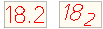
Feature Code | Sounding feature codes determine how soundings are displayed (slanted, decimal points, subscript, etc.). 1. Select from the list. |
Size | Set the size at which a sounding is drawn on a map.The default size is 1.45. 1. Type a value in the field. |
Colour Range | Assign colours to soundings according to depth. 1. Select from the list. 2. Continue as described in Colour Range Editor. |
Rounding | The methods used to control the displayed rounding or truncating of soundings. This affects all soundings on the layer. 1. Select from the list. |
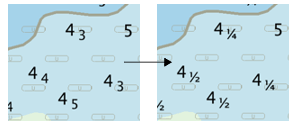
Fractional Display | Display soundings with fractions rather than decimal points.
1. Enable the check box. The value changes to True. |
Contours | |
Colour Range | Colour contour lines according to depth.
1. Select from the list. 2. Continue as described in Colour Range Editor. |