CARIS HPD Paper Chart Editor
 CARIS HPD Paper Chart Editor
Pop-up | Add Page (Object Browser) |
Pages make up the content of an Atlas. Pages can contain either external files or PCE database charts.
An Atlas must be open.
Related commands
• • • | • • • |
Procedure
1. Select the parent Atlas layer in the Object Browser
2. Select the Add Pages to Atlas command.
3. Select the Attributes window.
4. Set any of the following attributes.
Attribute | Description |
|---|---|
Page Number | The page number in relation to other pages. The first page is automatically set to 1. Page numbering can be reset using the Start Page Numbering command. |
Page Title | Title for the page. The title is displayed in the Object Browser. Type a title for the page and press <Enter>. |
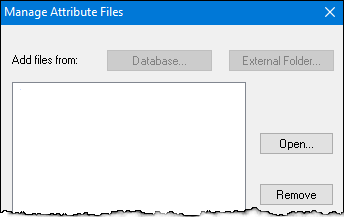
File | Append either an external file or database file to the page. The file can be an image or any other type of file (PDF, word processor file, etc.). 1. Click Browse. The Manage Attribute Files dialog box is displayed.
See External Files and Database for more information. |
Export Filename | File name of the page, if it is exported by itself. Type a name and press <Enter> |
Page Code | A special user-defined code that is added to the page. Type the code and press <Enter>. |
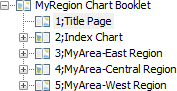
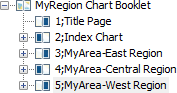
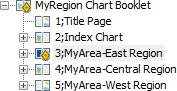
Preferred Page Layout | Set a page to be a right or left page, or set pages automatically using the Any option. The default Any option sets the page layout automatically from the first page. The page layout is shown by shaded icons.
Right or left page layouts are displayed with icons showing the page selection in blue. See below.
If an irregular layout is selected, a warning icon is displayed beside the page.
|
When any of the page layers are selected and the mouse is right-clicked, Atlas-related commands are available in a pop-up menu.
The following table lists these commands.
Command | Description |
|---|---|
Insert Page | Add another page to the Atlas. |
Move Up | Move a selected page up. |
Move Down | Move a selected page down |
Export Atlas Page(s) | Export selected pages to PDF or TIFF files |
Start Page Numbering | Set the selected page to 1. All pages are numbered sequentially from the selected page. The PAGE_NUMBER attribute value is filled when the pages are numbered. |
Copy | Copy page information in XML format. |
Delete | Remove a page from the Atlas. |
External Files
Files can be accessed from a folder or from the database. When an external file is added to an Atlas, it is automatically stored in the database.
External files are selected from the Manage Attribute Files dialog box that is displayed when Browse for the PAGE_FILE attribute is clicked
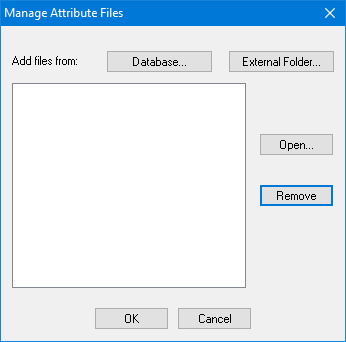
1. Click External Folder.
The Open dialog box is displayed.
2. Select a file and click Open.
The file name is displayed in the dialog box,.
3. [Optional] Select the file and click Open to view the file.
4. [Optional] Select the file and click Remove to delete the file from the dialog box.
5. Click OK.
The file is listed with the PAGE_FILE attribute.
Only one external file can be added per page.
Database
Database files are external files that have been saved automatically to the database after being added to an Atlas. Database files are opened from the Manage Attribute Files dialog box that is displayed when you click Browse for the PAGE_FILE attribute.
1. Click Database.
The Database Files dialog box is displayed.
2. Select a file stored in the database using any of the following methods:
• Click Query to list all files stored in the schema.
• Type a regular expression in the Filter Files field and click Query.
• Type a file extension in the Extensions field and click Query.
The files are listed in the dialog box.
3. Select a file.
4. Click OK.
The file name is displayed in the Manage Attribute Files dialog box.
5. [Optional] Select the file and click Open to view the file.
6. [Optional] Select the file and click Remove to delete the file from the dialog box.
7. Click OK.
The file is listed with the PAGE_FILE attribute.