 CARIS HPD Paper Chart Editor
 CARIS HPD Paper Chart Editor
CARIS Paper Chart Composer
Menu | Tools > Editors > Colour Palette |
Customize an existing colour palette or create a new palette from an existing one.
A colour palette defines how colours are displayed in a chart. When a new colour palette is created, it is not automatically associated with an open chart. The new palette must be associated with a chart portrayal. For more information on chart presentations, see Portrayal.
Procedure
1. Select the Colour Palette command.
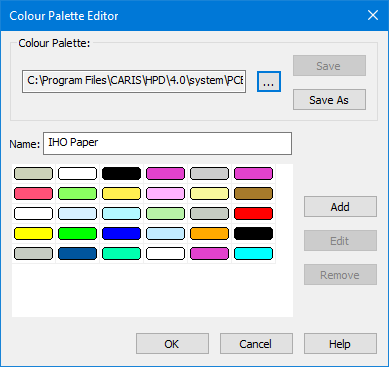
The Colour Palette Editor is displayed.
A colour palette must be open before new or modified colours can be added.
2. To open a colour palette, click browse (...).
3. Select the palette and click Open.
The selected palette is displayed.
New Colour
Create custom colours.
1. Click Add.
The Edit Colour dialog box is displayed.
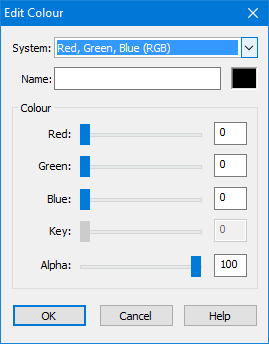
2. From System, select from three colour models:
• Red, Green, Blue (RGB)
• Hue, Light, Saturation (HLS)
• Cyan, Magenta, Yellow, Key (CMYK)
3. Type a Name for the colour.
Sliders set intensity levels for primary colours. Levels can also be set by typing values in the fields. As values are changed, the new colour is previewed.
The Alpha slider sets the colour’s visibility level: 0 is completely transparent and 100 is completely opaque.
4. For each primary colour or alpha, move the slider or type a value in the field.
5. Continue adding colours as needed.
6. Click OK.
The new colour is displayed in the Colour Palette Editor.
7. Save the new colour settings:
• To save the open colour palette, click Save.
• To save to a new colour palette, click Save As.
Edit a Colour
Modify an existing colour in the palette
1. Select the colour to modify and click Edit.
The Edit Colour dialog box is displayed with the selected colour.
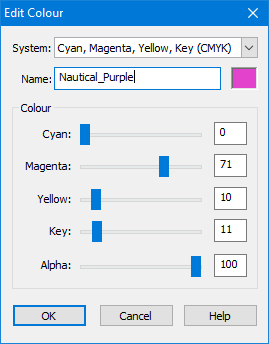
2. Select a colour model from the System list.
3. If necessary, type a new name for the colour
4. Modify the colour and alpha values.
5. To finish, click OK.
6. To save your changes to file, click Save.
Delete a Colour
Delete colours from the palette.
1. Select the colour to delete and click Remove.
2. To save the changes, click Save, or to save the modified file under a new name, click Save As.
The selected colour is deleted and the palette is saved.