 CARIS HPD Paper Chart Editor
 CARIS HPD Paper Chart Editor
CARIS HPD Product Editor
CARIS HPD Source Editor
CARIS HPD Publications Module
Menu | Projects > Project Properties > Current Project Projects > Project Properties > Selected Project |
Menu | Projects > Project Properties (Publications Module) |
View information on your projects.
Related commands:
• • • • • • • • | • • • • • • • • |
Interface
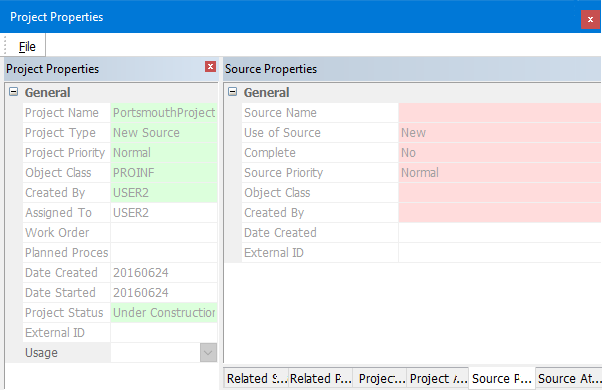
The Project Properties dialog box displays information about the project.
Most fields are read-only, but some can be modified. Project data can be modified using the Project Editor. For more information on the Project Editor, see Database Administration.
Project properties are displayed on the left. On the right is a group of tabbed windows displaying a variety of properties:
The Project Properties window shows information related to an open project.
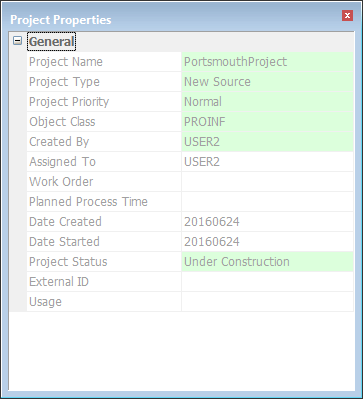
The Project Attributes window displays attributes associated with the project selected in the grid.
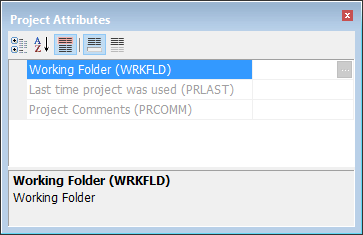
Right-click and select a command from the pop-up menu:
• Copy: Copy the current attribute to the clipboard.
• Copy All: Copy all data in the window to the clipboard.
You can then paste the contents of the clipboard into a text file or other document.
The Project History window displays information about changes to the project.
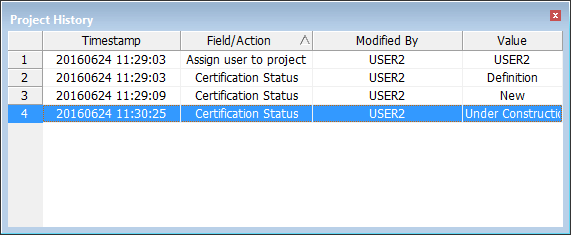
Column | Description |
|---|---|
Timestamp | Date and time the change was made. |
Field/Action | The field that was changed or the action that was taken. |
Modified by | The user ID of the person making the change. |
Value | The new value of the field. |
You can change the order of the table by clicking on the column headings.
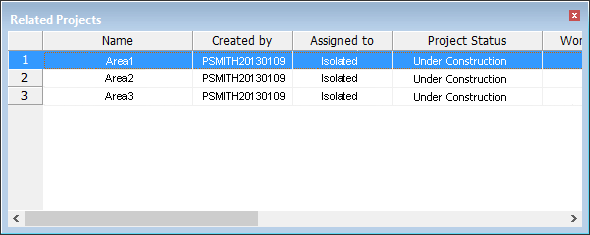
The Related Projects window displays all subprojects of the active project.
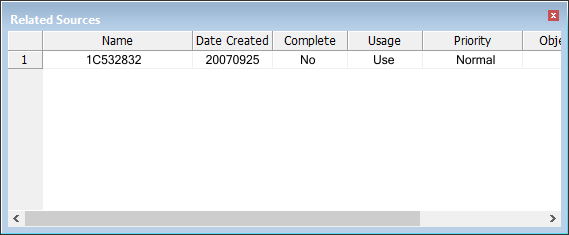
The Related Sources window displays the sources associated with the open project.
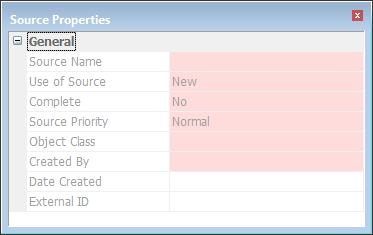
The Source Properties window displays information on the selected source.
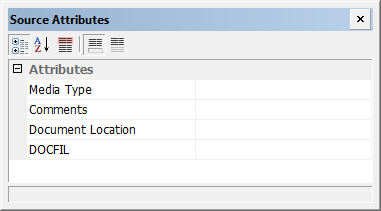
The Source Attributes window displays attribute information on a selected source.
Procedure: Current project
1. Select the parent layer of the project, or any data layer.
2. Select the current Project Properties command.
The Project Properties dialog box is displayed
Procedure: Selected project
1. Make sure the Project Boundaries layer is active.
All projects with project boundaries that are assigned to you are displayed.
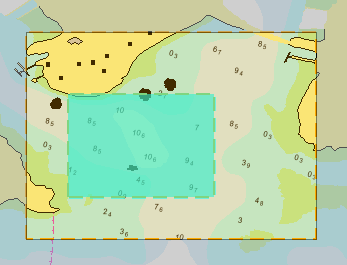
2. Click on the project of interest in the Display window.
3. Select the selected Project Properties command.
The Project Properties dialog box is displayed.