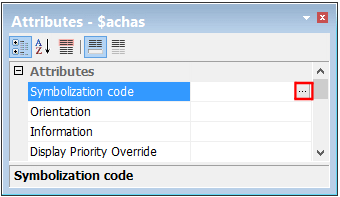
The Symbolization Browser modifies cartographic symbols.
The browser is opened from the Symbolization Code ($SCODE) field in Attributes window or when overriding a cartographic symbol using the Create > Cartographic Overrides command.
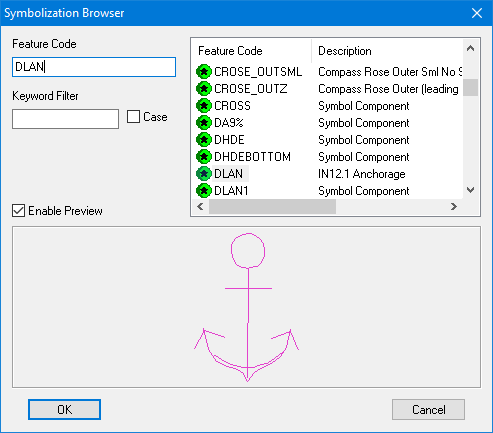
An example of the Symbolization Browser is shown below.
To search for a cartographic symbol, use any of the following methods:
• Scroll down the list using the scroll bar until you locate the symbol name.
• Feature Code provides a quick find method of locating a symbol. As you start typing characters, the Browser automatically selects the match from the list.
• Keyword Filter allows you to search for all or part of a word in all fields to try to find a match. You can also set the case sensitivity (search for a word as typed, match upper and lower case or ignore case).
Enable Preview controls the symbol display in the browser. When this check box is selected, a preview of the symbol (if available) is shown.