You can generate S-57 ENC and S-101 ENC products from an existing S-57 schema as described below.
Load profile
First, load the S-101 vector product profile in the database using the ImportS100Catalogue carisbatch command:
.\carisbatch --run ImportS100Catalogue hpd://username:password@connecstring --product-name "S-101 ENC Catalogue" --product-version "1.1.0" --catalogue-file "C:\Program Files\CARIS\HPD\<version>\system\S100Config\system\S-101\S-101_FC_1_1_0.xml" --Supplement-File "C:\Program Files\CARIS\HPD\<version>\system\S100Config\system\S-101\S-101_FC_1_1_0_supplement.xml" |
Substitute your own schema user name and password.
Note the following:
• The --Set-Source-Catalogue parameter is not used so that only the new S-101 product profile is loaded into the S-57 schema.
• The HPDS100ServerBuilder feature must be included in your license or the ImportS100Catalogue process will not run.
• S-101 ENC Catalogue is a reference to a vector product template.
Add vector product template
For this, you use the Admin Tools.
1. Launch the HPD Admin Tools
2. Log in as the HPD schema user.
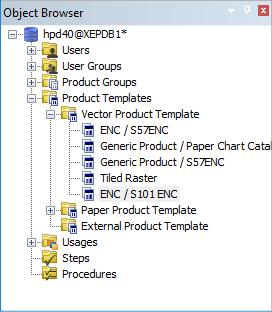
3. In the Object Browser, expand the Product Templates group.
4. Right-click on the Vector Product Template folder and select Add from the pop-up menu.
The Object Browser will look like this:
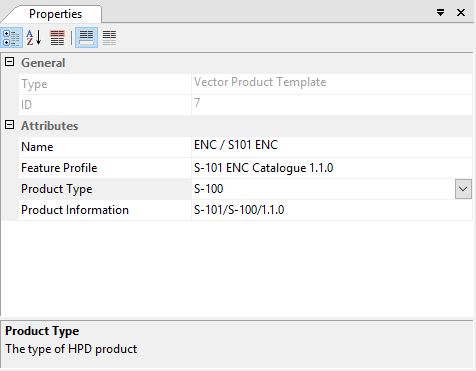
Blank template properties are displayed in the Properties window.
5. Fill in the required properties as shown here:
6. Save the new template.
Feature mapping
Now set up feature mapping.
When S-57 source features are loaded into Product Editor, they must be mapped so that they become S-101 features, which are then used to make an S-101 ENC.
The conversion control file applies a feature mapping rule to a product profile.
First, modify the conversion control file. This is located in c:\Program Files\CARIS\HPD\<version>\system\ and is named conversioncontrol.xml
1. Add the following new entry:
<?xml version="1.0" encoding="utf-8" ?> |
<ConversionControlFile Version="1.0"> |
<!-- <Conversion ProfileName="S-57 ENC" ProfileVersion="1" MappingName="Combined Source to ENC Conversion" /> --> |
<Conversion ProfileName="S-101 ENC Catalogue" ProfileVersion="1.1.0" MappingName="S-57 3.1 to S-101 1.1.0" /> |
</ConversionControlFile> |
Note the following:
• The feature mapping rule files are deployed here: C:\Program Files\CARIS\HPD\<version>\Modules\support\Compilation4\Rules
• The value of the MappingName parameter in the conversion control file must match the value of the Name parameter in the feature mapping rule file.
• The value of the ProfileName parameter must match the value of the --product-name parameter in the ImportS100Catalogue process.
• The value of the ProfileVersion parameter must match the value of the --product-version parameter in the ImportS100Catalogue process.
Create a new S-101 ENC product
For this task, use Product Editor.
1. Start Product Editor and open a workspace or an HPD project.
2. Select S-100 from the Product type list.
The Template list now contains the ENC / S101ENC template you created earlier.
3. Select the template.
The workspace or project is opened. It displays S-101 features.
4. Select the Create S-100 Product command.
The Create S-100 Product Wizard is displayed.
5. Enter the necessary information in the wizard dialog boxes.
The new product is created using the remapped source features.
6. Save the new product.