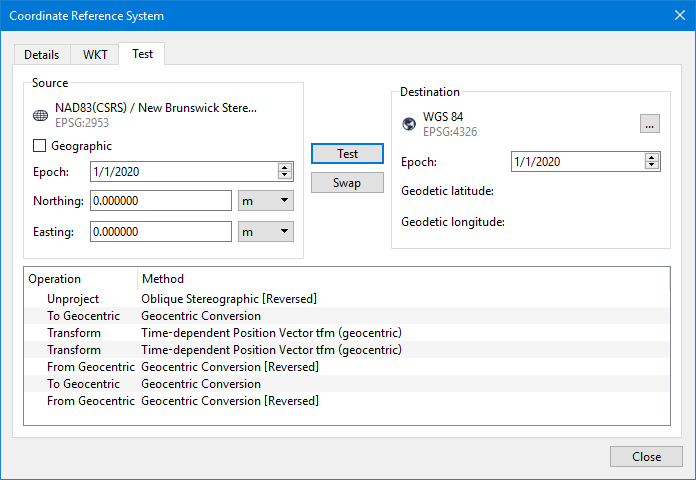
The Test tab of the Coordinate Reference System dialog box is used to show details of a transformation from the currently selected CRS to another CRS, by default WGS 84.
Enter test coordinates in a format suitable for the selected CRS - geographic coordinates for a geodetic CRS, projected coordinates for a projected CRS - and transformed to the destination CRS. The result of the calculations at each step of the transformation is shown, identifying each stage when concatenated transformations are performed. You can then compare the end results against known values to confirm whether the transformation is set up correctly in the bound CRS support file.
Interface
Option |
| Description |
|---|---|---|
Source | Geographic | Enable this option to specify the test coordinates in geographic format instead of ground format. Enabling/disabling this option changes the coordinate fields to allow entry in the selected format. |
Epoch | Specify an epoch time to apply to the destination CRS for transformation. 1. Click a section of the date in the Epoch field. 2. Use the Up and Down arrow buttons to change the value. 3. Repeat the above steps for each section of the date value. | |
Coordinate fields | Enter the coordinates for the test point in the coordinate fields. Depending on the coordinate format (Geographic option), the fields are labelled either Northing and Easting or Geodetic latitude and Geodetic longitude. | |
Northing/Easting: To enter ground coordinates: 1. Type a value in each field. 2. Select the relevant unit of measure from the drop-down lists. | ||
Geodetic latitude/Geodetic longitude: To enter geographic coordinates: 1. Select the coordinate format from the drop-down lists. 2. Type a value in each field. 3. Select the direction for each coordinate from the drop-down lists. | ||
Destination | Coordinate Reference System | Destination CRS for the transformation test. 1. Click the browse button (...) to launch the Select Coordinate Reference System dialog box. 2. Select a CRS from one of the lists in the dialog box. 3. Click OK. |
Epoch | Specify an epoch time to apply to the destination CRS for transformation. 1. Click a section of the date in the Epoch field. 2. Use the Up and Down arrow buttons to change the value. 3. Repeat the above steps for each section of the date value. | |
Geodetic latitude/Geodetic longitude | Populated with the resulting transformed coordinates after the transformation test is run. | |
Test | Performs the transformation test. | |
Swap | Reverses the test, using the destination CRS as the input and the source CRS as the output. | |
Results area | Populated with the details of the transformation after the Test button is selected and the transformation test is run. | |
Test procedure
1. Select the Select Coordinate Reference System command.
The Select Coordinate Reference System dialog box is displayed.
2. Select a coordinate reference system from the lists, and then click the Info button for that system.
The Coordinate Reference System information dialog box is displayed, populated with information about the selected system.
3. Select the Test tab.
4. [Optional] Specify an Epoch date for the source CRS if one is needed.
5. Enter the coordinates for the test point.
6. Click the browse button (...) for the Destination CRS, and select the relevant CRS from one of the lists.
7. [Optional] Specify an Epoch date for the destination CRS if one is needed.
8. Click Test.
The transformed coordinates are displayed in the Destination coordinate fields, and the details of the transformation are displayed in the results area.