Menu | Edit > Text |
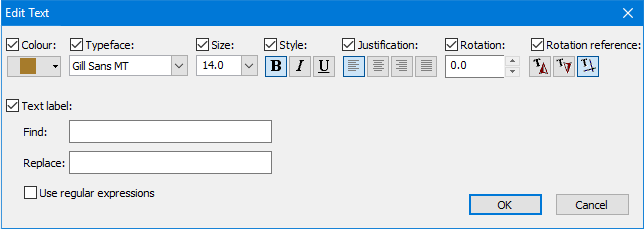
The Edit Text command lets you modify selected text features. You can do the following:
• change the formatting of the text feature as a whole (colour, typeface, size, style, justification, and rotation)
• adjust text rotation
• find and replace the contents of text strings
Interface
Option | Description |
|---|---|
Colour | On: Change the colour of all selected text features to the selected colour. Select a colour from the palette. Off: Do not change the colour of the selected text features. |
Typeface | On: Change the typeface of all selected text features to the selected typeface. Select a typeface from the list. Off: Do not change the typeface of the selected text features. |
Size | On: Change the size of all selected text features to the selected size. Select a size from the list or type the size in the box. Size is in points relative to the symbolization scale of the layer. Off: Do not change the size of the selected text features. |
Style | On: Change the style of all selected text features. You can select any combination of bold, italic, and underline. Note that these are toggles. For example, if the text is already bold, selecting the bold button will turn bold off for that text. Off: Do not change the style of the selected text features. |
Justification | On: Change the justification of all selected text features to the selected justification. Select from Left, Centred, Right, and Full. Off: Do not change the justification of the selected text features. |
Rotation | On: Rotate the selected text features. Use the up and down arrows or type a value in degrees. Text is rotated around the first point. Positive numbers rotate counter-clockwise. If the Rotation Reference is North or South Pole, zero degrees is based on the coordinate reference system. If the reference is Grid North, zero degrees is upright based on the display. • For point justified text, the rotation is absolute. For example, a value of 90° will rotate all selected point justified labels to 90° regardless of their current orientation. A value of 0° will return all selected point justified labels to horizontal. • For curved text, the rotation is cumulative. For example, a value of 45° will rotate the curved text 45° counter-clockwise from its current orientation. Repeating the 45° will rotate it to 90° from its original orientation. A value of 0° will not change the orientation. Off: Do not change the orientation of the selected text features. |
Rotation Reference |
|
Text label | On: Find and replace text: Find: Type the text string you want to find. • On: You can search and replace text using regular expressions. • Off: Only the literal text string is searched/replaced. Searches are case sensitive. Off: Do not find and replace text. |
Procedure
1. Select one or more text features.
2. Select the Edit Text Features command.
The Edit Text dialog box is displayed.
3. Enable any formatting styles you want to change and select the new style or value.
4. Disable any formatting styles you want to remain as is.
5. Type any text strings you wish to replace.
6. Click OK.
The selected text features are reformatted or otherwise changed.
 North Pole: Orient text towards the North Pole, as defined in the coordinate reference system.
 South Pole: Orient text towards the South Pole, as defined in the coordinate reference system.
 Grid North: Add text normally with no rotation toward any pole.