 CARIS HPD Publications Module
 CARIS HPD Publications Module
CARIS HPD Source Editor
CARIS HPD Product Editor
CARIS HPD Paper Chart Editor
Compare a selected object with its current version.
Note: The Compare with Current Version command is different for Publications Module and the Editors (Source Editor, Product and Paper Chart).
Publications Module
Menu | View > Compare with Current Version |
Tool | |
Pop-up | Compare with Current Version (Object Browser) |
This command is active only after the History command is run and the Previous Version folders are displayed in Object Browser.
Related commands:
• • | • • |
Procedure
1. In Object Browser, select the publication version to be compared in the Previous Versions folder.
2. Select the Compare with Current Version command.
The Compare Properties window is displayed.
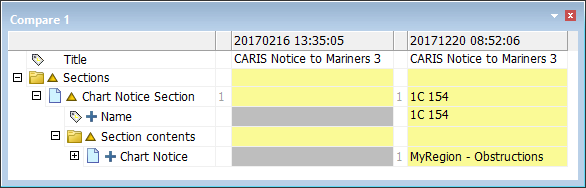
Rows represent attributes. Columns represent publication versions. The most recent version is shown on the right.
Rows that are highlighted in yellow show attributes that have changed between versions. The following symbols show the type of changes:
• Delta (Δ) represents changes to existing attributes
• Plus (+) represents additions
• X represents deletions.
Source Editor, Product Editor and Paper Chart Editor
Pop-up | Compare with Current Version (History Window) |
The Compare with Current Version command lists the changes to feature attributes and geometry in the Output window.
Related commands:
• • | • • |
Procedure
1. In the History window, select an Add or Edit event
2. Select the Compare with Current Version command.
• The results are displayed in the Display and Output windows. The results will be different for different feature types.
Point Changes
1C 0000025201 00001
|
You can view the old and new versions of a point feature by clicking the links in the Output window. Click (Zoom) to zoom and centre the feature
• First Coordinate pair : Highlight the original position with a red marker
• Second Coordinate pair : Highlight the new position with a blue marker
Line Changes
====== Results of object comparison - start ======
1C 0000025202 00001 Spatial edit: (Zoom) New nodes: (DrawAll) (75.3668, 13.4401) Removed nodes: (DrawAll) (74.281, 13.0769) New edges: (Draw All) (75.3668, 13.4401), (74.1532, 24.1965) (Zoom) Removed edges: (Draw All) (74.281, 13.0769), (74.1532, 24.1965) (Zoom)
====== Results of object comparison - end ====== |
You can view the old and new versions of a line feature by clicking links in the Output window:
• New Nodes : Highlight the position of new nodes with a blue marker
• Removed Nodes : Highlight the former position of removed nodes with a red marker
• New Edges : Highlight the position of new edges with a blue line, either using (Draw All) or individually. Click (Zoom) to zoom and centre the edge.
• Removed Edges : Highlight the former position of removed edges with a red line, either using (Draw All) or individually. Click (Zoom) to zoom and centre the edge.
Area Changes
====== Results of object comparison - start ======
1C 0000025210 00001 Spatial edit: (Zoom) Shape Changes: (Draw all old shapes) (Draw all new shapes) Old shape (Zoom) ->
====== Results of object comparison - end ====== |
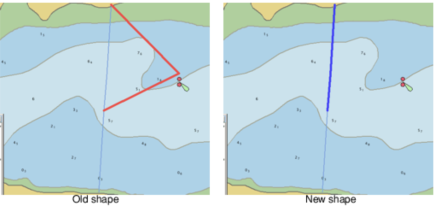
You can view the old and new versions of an area feature by clicking links in the Output window. Click (Zoom) to zoom and centre the area.
• Draw all old shapes: Draw and highlight all old area features and highlight it with a red outline.
• Draw all new shapes: Draw and highlight all new area features and highlight it with a blue outline.
• Old shape: Draw the old shape of the area feature and highlight it with a red outline. Click (Zoom) to zoom and centre the feature.
• New shape: Draw the new shape of the feature and highlight it with a blue outline. Click (Zoom) to zoom and centre the feature.
Text and Image Changes
====== Results of object comparison - start ======
1C 0000025204 00001 Spatial edit: (Zoom) Spatial edit details are not currently supported for text features.
====== Results of object comparison - end ====== |
Click (Zoom) to zoom and centre the feature.
Spatial edit details are not currently supported for text and image features.
The Display Representation command can be used to display an older Representation of the feature.
