Menu | File > New > Feature Layer |
Tool |
|
Menu | File > New > Feature Layer |
Tool |
|
Create a new feature layer. You can use a feature layer to create new features or edit existing features.
You can copy existing features to a feature layer using the Import Selected Objects command.
You can save the contents of a feature layer using the Save command. By default the contents of the layer will be saved to a HOB file or an H2O file, depending on the catalogue of the layer. If the catalogue meets any of the following criteria, the layer will be saved as an H2O file, which is a CARIS feature-based format:
• the catalogue contains custom object acronyms that are longer than 6 characters
• the catalogue contains attributes with multiplicity, which is specific to S-100
• the catalogue contains information type objects, which is specific to S-100
• the data type of the catalogue is S-100
If you close a feature layer or exit from CARIS, you will be asked if you want to save the feature layer.
Interface
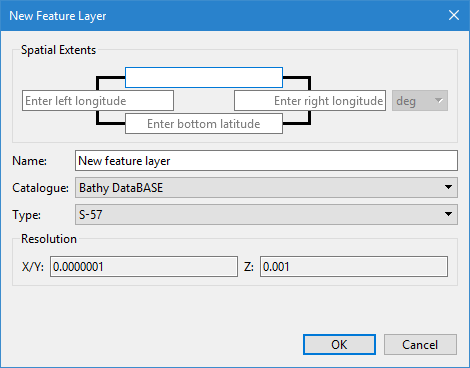
The New Feature Layer command uses the following dialog box.
Option | Description |
|---|---|
Spatial extents | Define the extents of the feature layer. This section of the dialog box is only displayed if there is no data open in the application at the time the command is launched. If data is open, the extents of the view are automatically used as the extents for the feature layer. The extents are defined as coordinate values that form a bounding box around the area to be used in the feature layer. The coordinates are entered as the latitude values at the top and bottom of the bounding box and the longitude values at the left and right of the bounding box. The unit of measure field is used to identify the unit of the coordinate values. Because new feature layers are always created using geographic units, this setting cannot be changed. 1. Enter the coordinate values for the top, bottom, left and right extents to assign to the feature layer. |
Name | The display name for the feature layer. This field is populated with a default name of "New feature layer". If a layer already exists with this name, the name automaticallly will be appended with a number in brackets, incremented by 1, such as "New feature layer (2)". 1. Type a name in the field. |
Catalogue | The object catalogue of the feature layer. The catalogue controls which object acronyms and attributes are available for creating and editing features in the layer. 1. Select an option from the list. |
Type | The resolution type of the layer. Select an option from the list. |
Resolution | The XYZ values from the selected resolution type. This field is read-only. |
Procedure
1. Select the New Feature Layer command.
The New Feature Layer dialog box is displayed.
2. Enter the spatial extents, if needed.
3. Type a name for the layer.
4. Select a catalogue from the list.
5. Select a Type option.
6. Click OK.
A new data source is added to the Project window and a new layer is added to the Layers window. Once a feature is added to the layer, the layer can be saved. The layer icon changes colour to indicate that it has been saved.
