Menu | Tools > Coverages > Bands > Delete Band |
Pop-up | coverage band > Delete Band (Project window) |
Remove a selected band from a raster surface, variable resolution surface or point cloud.
This is a permanent change. This operation is not affected by the Undo or Redo commands, and there is no way to recover data once the band is deleted.
The following bands are required and cannot be deleted:
• Primary elevation band
• Status band
This command cannot be used for layers that are not part of a coverage, such as a Bounding Polygon layer; these layers can be closed using the Remove Layer command.
Related commands:
Interface
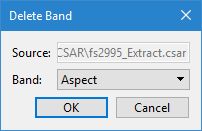
The Delete Band command uses the following dialog box.
Option | Description |
|---|---|
Source | The name and location of the input. The Source is defined by the coverage that was selected at the time the command was initiated. This field cannot be changed. |
Band | The band that is to be deleted from the input coverage. The drop-down list will be populated with all bands in the coverage that can be deleted. |
Procedure
1. In the Layers window, select the coverage containing the band you want to delete.
2. Select the Delete Band command.
The Delete Band dialog box is displayed.
3. Select the Band to be deleted.
4. Click OK.
A message is displayed to confirm the deletion of the band.
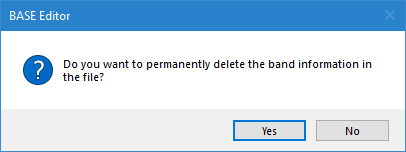
5. Click Yes to permanently delete the band.
The band is deleted from the coverage.