Complete online revocation is a one-step process that allows license activations to be removed from a computer. This method is only available if the computer has internet access. Once an activation has been revoked, it is credited back to the license portal and can be activated on another computer. Any licensed functionality associated with the activation on the original computer is no longer available after it has been revoked.
To perform online revocation:
1. Select the License Manager command to launch the License Manager dialog box.
Menu | Help > License Manager |
2. Click the Revoke local licenses button in the License Manager.
3. Select Online Revocation from the drop-down list.
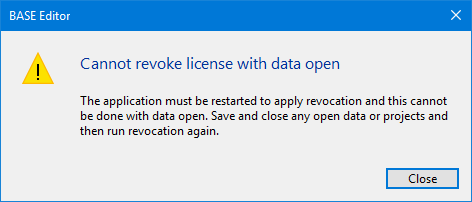
If there is data open in the application, an error message will be displayed stating that the application must be restarted in order to revoke an activation.
The application cannot be closed while data is open, you must close all open data or projects and run revocation again.
The Online Revocation dialog box is displayed.
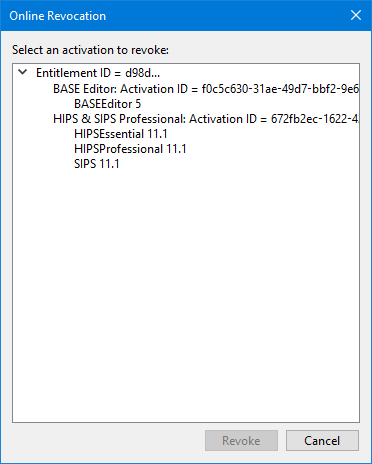
If the license provides activations for more than one module or product, you must select which activation to revoke. Only one activation can be revoked at a time.
4. Click the activation to be revoked.
5. Click Revoke.
A message is displayed asking for confirmation of the revocation.
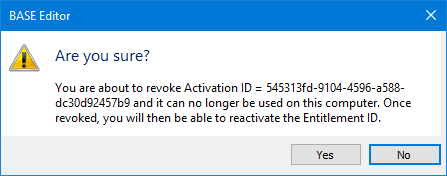
6. Click Yes to complete the revocation or No to cancel.
If Yes was clicked, all licenses must be temporarily suspended to revoke the selected activation. In order to do this, the application must be shut down. A message will be displayed to shut down the application.
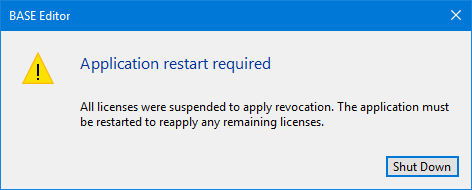
7. Click Shut Down to close the application and complete the revocation.
Once complete, the EID associated with the license can be used to activate the licensed functionality on another computer.
If revocation fails for any reason, the command can be run again. If it still cannot be completed after continued attempts, please contact Customer Service. |