Menu | Help > Help Topics |
Tool |
|
Key | <F1> |
Menu | Help > Help Topics |
Tool |
|
Key | <F1> |
Display the help for the application. Help displays in the default web browser of the computer.
In addition to this command, help can be launched by pressing the <F1> key or clicking the Help button in a dialog box. Doing this will display the help content for the current process rather than the home page of the help.
Help is available in both online and offline format.
• Online help is accessed from a web server.
• Offline help is loaded from a set of local files included with the installation.
The Help setting in Tools > Options > Files and Folders > Miscellaneous can be used to manually control whether to use online help or offline help. Online help is selected by default because this will always be the most up-to-date content available. If the computer does not have internet access when the application is started, launching the help will cause the application to automatically switch to offline help for the remainder of the session. This is a temporary switch; the next time the application is started and the help is launched, the application will check for an internet connection.
If the internet connection is lost after starting the application, the Help setting must be switched to Offline manually. |
Interface
Selecting the Help Topics command will display the home page of the help for the application in a browser window.
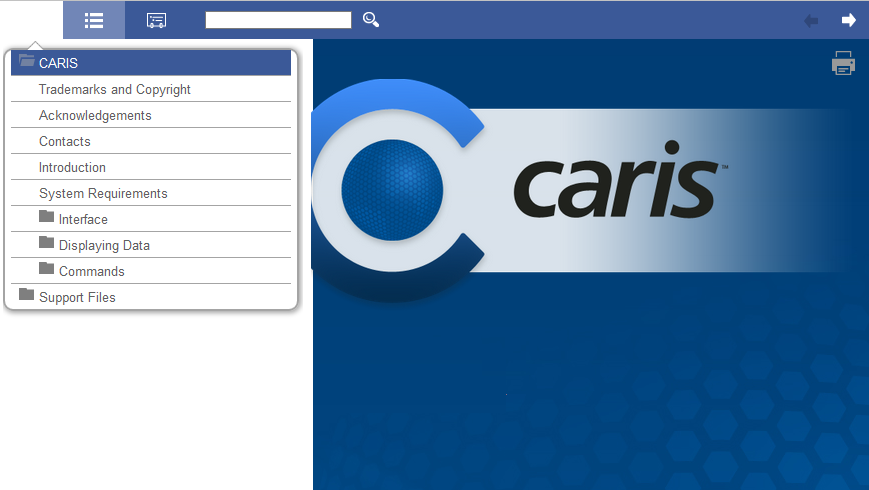
The following buttons are provided for navigating in the Help:
Button | Description |
|---|---|
| Display a hyper-linked table of contents for the help. Clicking a link will display the contents for the selected topic. The table of contents is displayed by default when help is launched. The list will remain displayed until either the button is clicked again to hide the list, or another button is clicked. If the screen size is made smaller, this may also cause the list to be hidden. |
| Display a hyper-linked, alphabetical index for the topics in the help. |
| Search all topics for a specific word or phrase. The results will be displayed in a list with the search word/phrase highlighted in each result. When a result is clicked, the relevant topic will be displayed with highlights on each instance of the search term in the topic. |
| Display either the Previous or Next topic in relation to the current topic. |
| Print the current topic. |
Procedure
1. Select the Help Topics command.
2. Navigate the help content as needed.