 CARIS HPD Source Editor
 CARIS HPD Source Editor
Menu | Tools > Limits and Boundaries |
The Limits and Boundaries commands are only available if the Limits and Boundaries module is enabled. See Modules for further information |
The Limits and Boundaries commands can generate several features in a single operation. You can use a template to make sure these new features have the right class and attributes. These templates are similar to Feature Palette entries.
Any templates used by the Limits and Boundaries commands must be copied or saved to the Tools folder in C:\Program Files\CARIS\HPD\<version>\system\LOSConfig.
If this folder does not exist, you must create it.
Templates can be selected from the Output option of the following Limits and Boundaries tools:
Related commands:
• • • • | • • • • |
Interface
Procedure
1. Select one of the Limits and Boundaries tools.
The dialog box for the selected tool is displayed.
You can select templates for any option that requires points or lines. Some dialog boxes have more than one such option.
2. Locate the Output options.
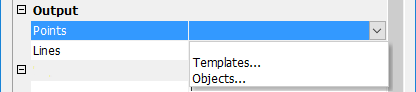
3. Select Lines or Points as required.
4. Select Templates from the list.
The Select Template dialog box is displayed.
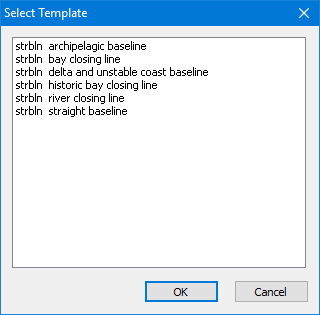
5. Select a template.
6. Click OK.
You are returned to the Limits and Boundaries command properties. The selected template is displayed in the option box.
7. Click OK.