 CARIS HPD Paper Chart Editor
 CARIS HPD Paper Chart Editor
CARIS HPD Product Editor
Menu | File > Open > HPD Chart |
Tool |
|
Menu | File > Open > HPD Product |
Tool |
|
Connect to an HPD database and open a product or a paper chart.
This command opens all vector product types.
If the product is being viewed by someone else, it will be opened as read-only and you will be unable to edit it.
Related commands:
• • • • | • • • |
Interface
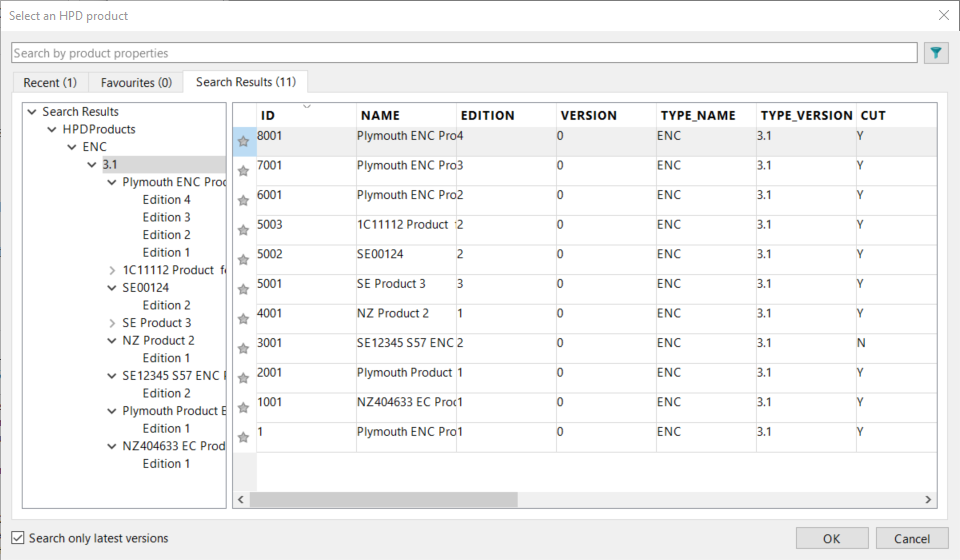
Command | Description |
|---|---|
| Reduce the number of visible products using a filter. The filter criteria is defined using the Filter dialog box that is launched when this button is clicked. See Filter for information on this tool. The default filter displays products that are Active or Locked. If filtering by defining a bounding box (BBOX), the coordinates of the bounding box must be in the WGS84 coordinate reference system. |
Tabs | Recent: Display products that have been opened recently. Favourites: Display products that have been marked as favourites in the product list. Search Results: Display products that match the current filter |
Product list | The products are listed. • Use the scroll bar to see all the product information. • Click on a row to select the product. • Click the star ( |
Search only latest versions | On: Only the most recent versions of the products are listed. Off: All versions of the products are listed. |
Properties | Right-click a product name and select Properties from the pop-up menu. The Product Properties dialog box is displayed. |
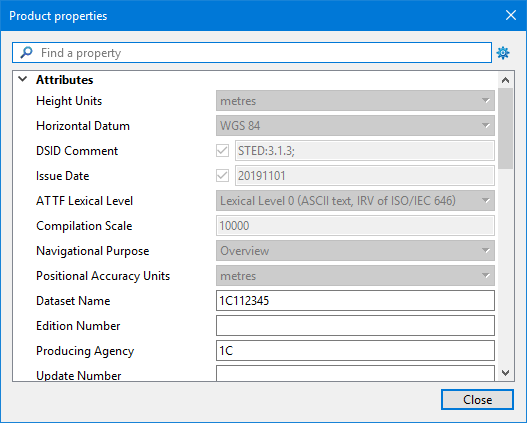
Command | Description |
|---|---|
Find a property | Search for a property name. Type a value in the box. The list of products will change based on the value you type. |
| Select the properties you want to display. The Visible Properties dialog box is displayed. |
List of properties | Scroll up and down to view the property values of the selected product. |
Procedure - Product not exported
1. Select the Open Product command.
If you are not connected to the database, the database dialog box is displayed.
2. Type your Username and Password or enable Use Windows credentials.
3. Click OK or Connect.
The Select an HPD Product dialog box is displayed.
4. Select a product and click OK.
The Open HPD Project dialog box is displayed.
5. Select a project and click OK.
If the product is the latest version and has not been exported, it is immediately displayed and product layers are listed in the Layers window.
When you select the top level layer, product data is displayed in the Properties window.
Fields that are dimmed are read-only and cannot be modified. All other fields are active and can be changed.
Procedure - Product has been exported
1. Select the Open Product command.
If you are not connected to the database, the database dialog box is displayed.
2. Type your Username and Password or enable Use Windows credentials.
3. Click Connect.
The Select an HPD Product dialog box is displayed.
4. Select a product and click OK.
The Open HPD Project dialog box is displayed.
5. Select a project and click OK.
One of the following Product Closed dialog boxes is displayed.
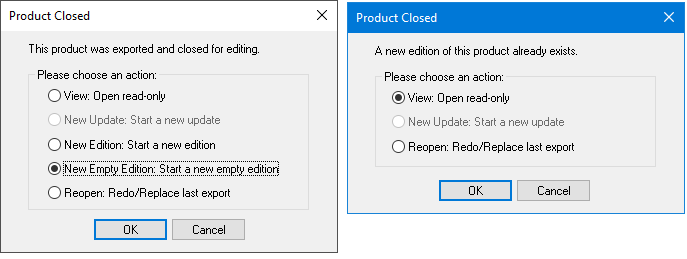
Option | Description |
|---|---|
View | Open the project as a read-only file. |
New Update | Reopen the project for editing as a new update. The update number is incremented by one and the issue date is set to the current date. This option is only available if the product has been released. |
New Edition | Open the exported product as a new empty edition. The edition number is incremented by one and the issue date is set to the current date. |
New Empty Edition | Open the product as a new empty edition. This option is available only for exported database products in HPD Product Editor. Only the Layout layer is available, and only the Source Extent (SRCEXT) and S-57/S-101 product (S57PRO/S101PRO) objects are present in that layer. Use this option to adjust the product boundary without recreating the product. After editing the Layout objects, run the Create > Product Data command to re-populate product data for the new product boundary. After this edition is exported, all future updates and editions will use the edited product boundary. This option cannot be run on previous editions of a product or on historical products. |
Reopen | Reopen the project for editing. The issue date is set to the current date. The edition and update versions remain the same. This option is only available if the product has not been released. |
6. Select an action and click OK.
The product is opened in the Display window, and the available product layers are listed in the Layers window.
When you select the top level layer, product data is displayed in the Properties window.
Fields that are dimmed are read-only and cannot be modified. All other fields are active and can be changed.
Active product metadata properties
Property | Description |
|---|---|
Product comments | Type additional comments into the fields. |
Product issued date | The date that the product is issued. Select a date from the calender (the default date is the current date). Click Today to set the date to the current day, or click None to not set a date. The format is YYYYMMDD |
Compilation scale of data | The compilation scale of the product. Type a new scale in the field. |
Data set file name | The name of the exchange set file. The naming convention is based on producer code, usage code, and a unique five-character code. Type a new code in the field. |
Binary code for producer | Two-character code for the agency responsible for the product. Type a new code. |
Vertical datum | The datum for altitude of object, clearances, and so on. Select a datum from the list. |
Sounding datum | The datum for sounding depths, wrecks, and so on. Select a datum from the list. |
DSPM Comment | Data Set Parameter Field comment. Type a new comment in the field. |
Sounding Rounding | The sounding rounding rule. Select another from the list. |
Set Issue Date on Export | Set the issue date to same date as export. Click the check box for True, leave blank for False. |
AML only | |
NATO Country Code | Two-character code for producing country. Select another code from the list. |
Usage Band | AML scale band. Select another band from the list. |
Security Classification | The security level of the chart. Select another classification from the list. |
Geographic ID Code | Geographic area identification Type another code into the field. |


 Filter
 ) to make a product a favourite or to remove it from the list of favourites.