Tool | CZMIL > 02 - Convert CZMIL Raw (Tools window) |
The Convert CZMIL Raw process model is used to create CZMIL Waveform (.cwf) data from raw CZMIL lidar data. During this process, the application reads the survey file to identify the input .lraw files and assign file name to the resulting .cwf files.
This conversion is only needed when working with data from CZMIL Nova. If using CZMIL SuperNova, the waveform data is created automatically during acquisition. |
CARIS Batch process: Convert CZMIL Raw
Interface
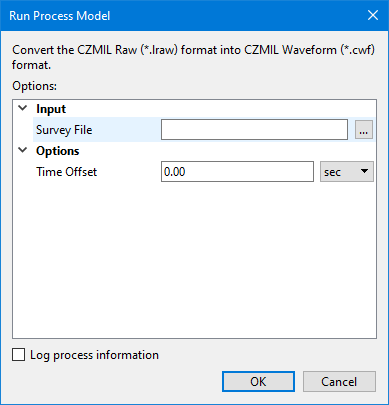
The options in this process model include:
Option | Description |
|---|---|
Survey File | The name and location of the survey file containing the survey lines of CZMIL data. If a survey file is open in the application, a drop-down list is also provided for this option. The drop-down list allows a survey layer open in the application or the current selection (if a survey line is selected) to be used as the input survey. 1. Click the browse button (...) to launch an Open file dialog box. 2. Navigate to the relevant file. 3. Click Open. |
Time Offset | The time offset to apply to navigation timestamps when converting the data. 1. Type a value in the field. 2. Select a unit of time from the drop-down list. |
Log process information | Create a log file containing the options specified when the process was run. The location of the log file is determined by the Logs setting in Tools > Options > Files and Folders. 1. Click the check box to enable this option. |
Procedure
1. Double-click the Convert CZMIL Raw process model in the Tools window.
The Run Process Model dialog box is displayed, populated with the Convert CZMIL Raw process model.
2. Navigate to the relevant Survey File.
3. Specify the Time Offset if one is needed.
4. Click OK.
A progress dialog box is displayed providing progress information as the images are converted. Similar information is also reported in the Output window.
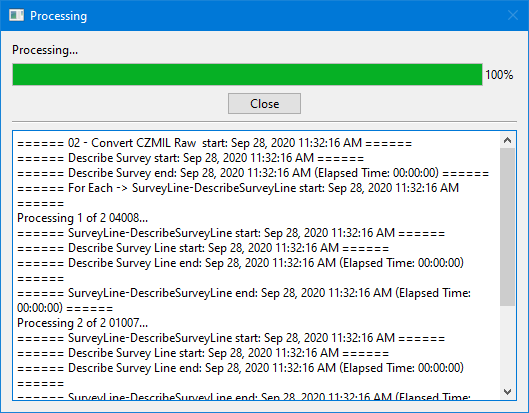
This process model calls to other processes and helper processes that have predefined settings. These processes allow the application to convert each of the images rather than having to run the process model on each image individually.
5. When finished, click the Close button to close the dialog box and complete the process.