The following message is displayed.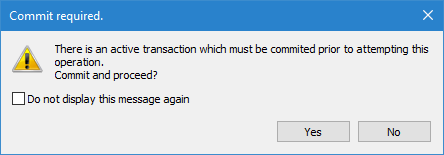
Functions that make a change to a database object are database transactions. Transactions include things like:
• changing the geometry of an object
• changing attribute values of an object
• adding a coverage to an object
• replacing the bathymetry associated with an object
If you perform a database transaction and then attempt to perform a second transaction without first saving the previous transaction, you are prompted to choose what to do with the first transaction before the second transaction can begin.
1. Perform a database transaction (for example, add a coverage to a database).
2. Without saving, start another database transaction.
The following message is displayed.
3. [Optional] To keep this message from being displayed again, select the Don’t display this message again option.
4. To save the first transaction and continue with the second, click Yes. To cancel the second transaction and return to the first without saving, click No.
Database Object History
All transactions for a BDB Server 5 database object are recorded in the journal of the object. Journal entries can be viewed in the History window of BASE Manager when a database object is superselected.
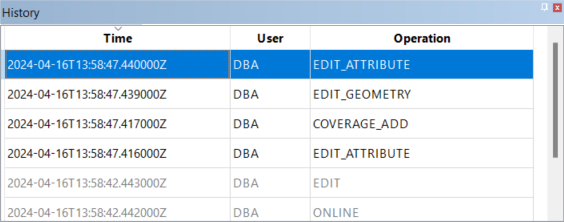
These entries identify when the change was made, the user that made the change, and what was changed.
Right-clicking a journal entry displays a pop-up menu of commands available for the current object. Click the headings below to view information about the available commands.
Note: Detailed journal entries were only recorded for database objects changed in BDB Server 5.4.2 or later. Changes made in earlier versions will be listed in the History window as a change, but will be greyed out and cannot be interacted with. |
Compare with Previous/Current/Other Versions
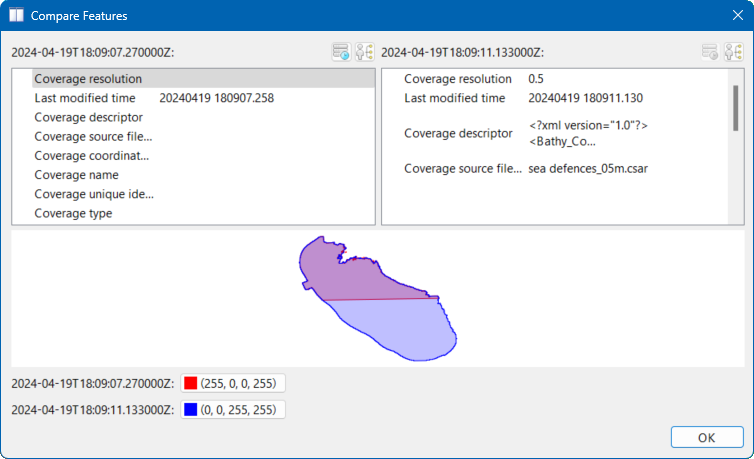
Launch the Compare Features dialog box, which is used to compare the state of the selected object with the current or previous state of the object. If more than one entry is selected in the History window, the Compare with Other Selected Versions command is available in the pop-up menu and can be used to compare the differences between each change of the object.
The information displayed in the dialog box will depend on the journal entry that was selected from the History window, different types of changes provide different details. The panes in the top half of the dialog box provide a list of the attributes that were changed and their state in each version, either current or previous. The bottom pane provides a visual comparison of the differences in the geometry of the object.
Show History:  Attribute History is also available for a specified attribute, showing all changes to that specific attribute.
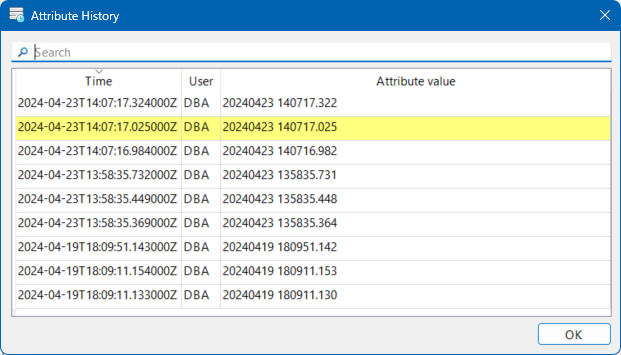
Show Details of Previous Version: 
Show Details
Launch the Details dialog box, which provides additional information about the changes made to the selected object.
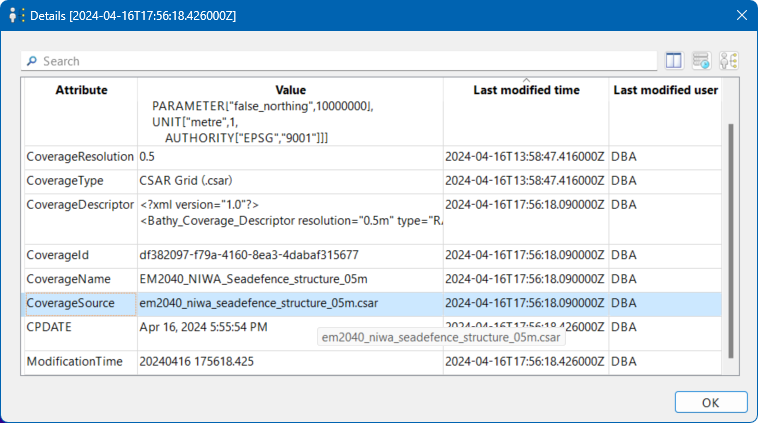
Show Details is now available for a specified state of a feature which shows the values of attributes at that time, based on changes recorded in the lineage, including the user who last changed the attribute and when the last change happened.
Export to geoJSON
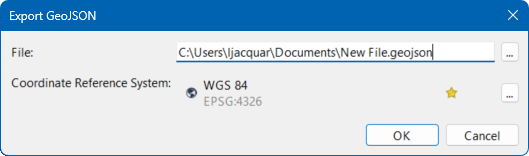
It is also possible to export a previous state of the feature (geometry and attributes) to a GeoJSON file.