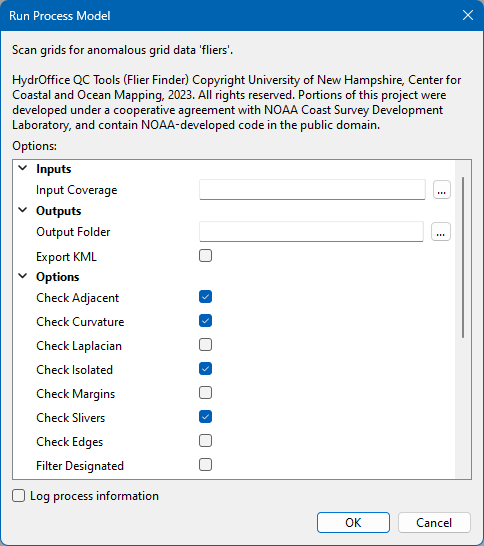
The Flier Finder tool available in QC Tools can be used to scan a raster for anomalous grid data fliers. Once identified, they can be investigated to determine if they are valid data or noise.
QC Tools is jointly developed and maintained by Giuseppe Masetti (Center for Coastal and Ocean Mapping, University of New Hampshire), Tyanne Faulkes and Matthew Wilson (NOAA Office of Coast Survey). This tool is not available as a standard tool in the application and requires the installation and set up of third-party software. The setup process is explained below.
When QC Tools has been installed and configured, the Flier Finder tool can be launched from the Tools window. Instructions for running the tool are also provided below.
QC Tools Setup
Step 1: Install and Configure Python
In order to run QC Tools, Python must first be installed on the machine. The installation can be downloaded from the Python website at https://www.python.org/downloads/. BASE Editor 6 supports Python 3.9, 3.10 and 3.11.
All defaults can be accepted during installation.
If Python will be used for other development in the CARIS application, using the CARIS API, it is recommended that the Add python.exe to PATH option on the last step of the installation wizard be enabled. A PYTHONPATH environment variable must then be set to point to the directory where the CARIS PyAPI is installed. Instructions for doing this can be found at Getting Started with Python.
Step 2: Install NumPy
In order to run the necessary calculations in Python, the NumPy Python module must also be installed.
• If the computer has internet access, the NumPy package can be installed by running the Python pip utility in a command prompt as follows:py -3.11 -m pip install numpy
• If the computer does not have internet access, the NumPy package will need to be downloaded and installed locally. The installation can be downloaded from the NumPy website at https://numpy.org/.
Step 3: Install and Configure QC Tools
Flier Finder is available as part of HydrOffice QC Tools, which can be downloaded from the HydrOffice website at https://www.hydroffice.org/qctools/main. Download the QC Tools Windows installer to the local machine and extract the files to the desired location.
Once QC Tools is downloaded, a QCTOOLS environment variable needs to be set to point to the executable file (.exe) for QC Tools. Refer to the Python documentation in Step 1 for information on defining an environment variable.
Note: Because the version number of QC Tools is included in the file name for the executable, if QC Tools is updated at any point, the environment variable will also need to be updated. |
Step 4: Install and Configure the CARIS Application
If all necessary third-party software has been installed and configured, the CARIS application can now be installed, if it is not already. Refer to the installation guide provided with the CARIS application for information on this process.
Once installed, launch the application and complete the First Run procedure for the application. During module selection, be sure to enable the Python module for the Python version that was installed.
HydrOffice QC Tools should now be available in the Tools window.
Running the Flier Finder Tool
The Flier Finder tool is launched in the form of a process model from the Tools window under the HydrOffice QC Tools group. When run, users can specify multiple criteria that will be used to search for soundings or point features that could be potential fliers.
Search results are returned as feature objects in the shapefile created by the process. The output file is automatically opened in the application upon closing the process dialog box. Selecting the shapefile layer in the Layers window and selecting all features in the layer (Ctrl + A) will indicate the number of fliers found. The Selection window is populated with the selected fliers and will indicate how the sounding/point feature was identified as a flier.
Also, if the Show Flier Finder Messages option is enabled, the Output window will be populated with the output from the process, which will indicate how many fliers were found and the coordinate of each flier.
The following options can be defined as the criteria for identifying fliers in the data.
Option | Description |
|---|---|
Input Coverage | The name and location of the grid data to be analyzed for fliers. 1. Click the browse button (...) and then navigate to the relevant file. |
Output Folder | The location in which to save the search results. 1. Click the browse button (...) and then navigate to the relevant location, |
Export KML | Export the output data to a KML file in the output folder. |
Check Adjacent | Enable this option to apply an algorithm that compares the depths of adjacent cells when searching for fliers. |
Check Curvature | Enable this option to apply the Gaussian Curvature algorithm when searching for fliers. This algorithm uses a measure of concavity at each node. |
Check Laplacian | Enable this option to apply the Laplacian Operator algorithm when searching for fliers. This algorithm uses a measure of curvature at each node. |
Check Isolated | Enable this option to apply the Isolated Nodes algorithm when searching for fliers. This algorithm identifies small groups of connected nodes (fewer than 4 nodes) that are detached (but outside of 5 nodes) from the grid, however, it is independent of flier search height, meaning that all small groups of isolated nodes will be flagged. It will identify the remaining isolated nodes not caught by Edge Slivers. |
Check Margins | Enable this option to apply the Noisy Margins algorithm when searching for fliers. This algorithm identifies fliers along noisy swath edges. |
Check Slivers | Enable this option to apply the Edge Slivers algorithm when searching for fliers. This algorithm identifies small groups of connected nodes (fewer than 4 nodes) that are detached (but within 5 nodes) from the grid. If the depth difference between the nearest detached node and the valid connection to the grid is greater than half the flier search height, a flag is registered. |
Check Edges | Enable this option to apply the Noisy Edges algorithm when searching for fliers. This algorithm identifies fliers along noisy swath edges. An edge node is identified when fewer than 7 adjacent valid neighbours are present in the surrounding 8 directions. |
Filter Designated | Enable this option to include designated soundings in the searching process. |
Filter Features | Enable this option to search S-57 point features in a specified file. |
S-57 Path | The name and location of the S-57 file that is to be searched for fliers. This option is only available if Filter Features has been enabled. |
Enforce Height | Enable this option to force the search to use a specific height value instead of allowing one to be automatically estimated from the data. 1. Click to enable the option. 2. Specify a height in metres. |
Filter Delta Z | Enable this option to apply a distance threshold between points/sounding features and Delta Z when searching for fliers. Points/sounding features that are further from the Delta Z than the distance specified will not be flagged as fliers. The value must be specified in metres. The default value is 0.01. 1. Click to enable the option. 2. Specify a distance value. |
Filter Distance Multiplier | Enable this option to apply a distance threshold between points/sounding features when searching for fliers. Points/sounding features separated by a distance more than specified value will not be flagged as fliers. The value must be specified as a multiple of the grid resolution. The default value is 1.0. 1. Click to enable the option. 2. Specify a distance value. |
Show Flier Finder Messages | Enable this option to report all messages from the Flier Finder tool in the Output window. |
Log Process Information | Create a log file containing the options specified when the process was run. The location of the log file is determined by the Logs setting in Tools > Options > Files and Folders. 1. Click the check box to enable the option. |
Additional information about each of the search options can be found in the QC Tools documentation on the HydrOffice website at https://www.hydroffice.org/manuals/qctools/stable/index.html.
Procedure
To run the Flier Finder tool:
1. Double-click HydrOffice QC Tools: Flier Finder in the Tools window.
2. Specify the Input Coverage.
3. Specify an Output Folder.
4. Define any necessary options.
5. Click OK.
The data is searched for fliers and the search results output to the specified location. The results can then be analyzed and the data adjusted as needed to remove any noise.