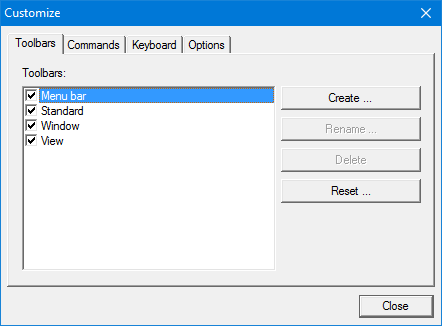
Change toolbar settings or create a custom toolbar.
Interface
Procedure
1. Select the Toolbars tab.
The Toolbars tab is displayed.
To show or hide existing toolbar, select or clear the check boxes beside the toolbar name.
To create a custom toolbar:
1. Click Create.
The New Toolbar dialog box is displayed.
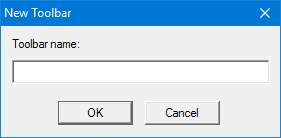
2. Type a name
3. Click OK.
A new empty toolbar is displayed and the new toolbar name is added to the Toolbars list.
To add commands to the toolbar, see Commands.
The Rename and Delete commands can only be applied to custom toolbars.
To change the name of a custom toolbar:
1. Select the toolbar in the Toolbars list.
2. Click Rename.
The Rename dialog box is displayed.
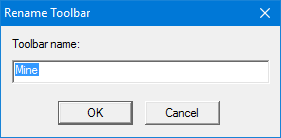
3. Type a new name and click OK.
To remove a custom toolbar:
4. Select the toolbar in the Toolbars list.
5. Click Delete.
If changes were made to a default toolbar, you can restore the original toolbar settings:
6. Select the toolbar in the Toolbars list.
7. Click Reset.