Menu | Tools > Report > Line |
Use the Line Report command to save line profiles directly to a text file.
The saved report will contain a table of values under the same column headings that can be viewed in the Detailed Line Query window.
As well as the detailed line data, the report also shows the totals of the values for these specific columns:
• Total Time | • Length | • Total Nav | |
• Accept Nav | • Reject Nav | • Total Depth | |
• Accept Depth | • Reject Depth |
The text file can be opened in a text editor, but column data can be best viewed in a spreadsheet.
Interface
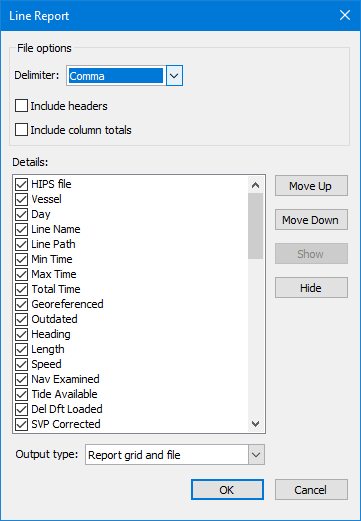
The Line Report dialog box is used to create the report.
Field | Description |
|---|---|
Delimiter | Select a character to use to indicate where to separate the data into columns. The default is Comma |
Include headers | Select the check box to have this information included in the text file. |
Include column totals | Select the check box to have this information included in the text file. |
Details | Select the column headings to include in the text file |
Move Up /Move Down | Click either button to change the order of the columns. The top of the list becomes the first column in the table. |
Output type | • Report grid and file • File • Report grid. |
Procedure
1. Select a line in the Display window.
2. Select the Line Report command.
The Line Report dialog box is displayed.
3. Set options
4. Click OK.
The Save as dialog box opens so you can save the report to a text file.
5. Browse to location to name and save the file.
6. Click OK.